

Let's do it together!
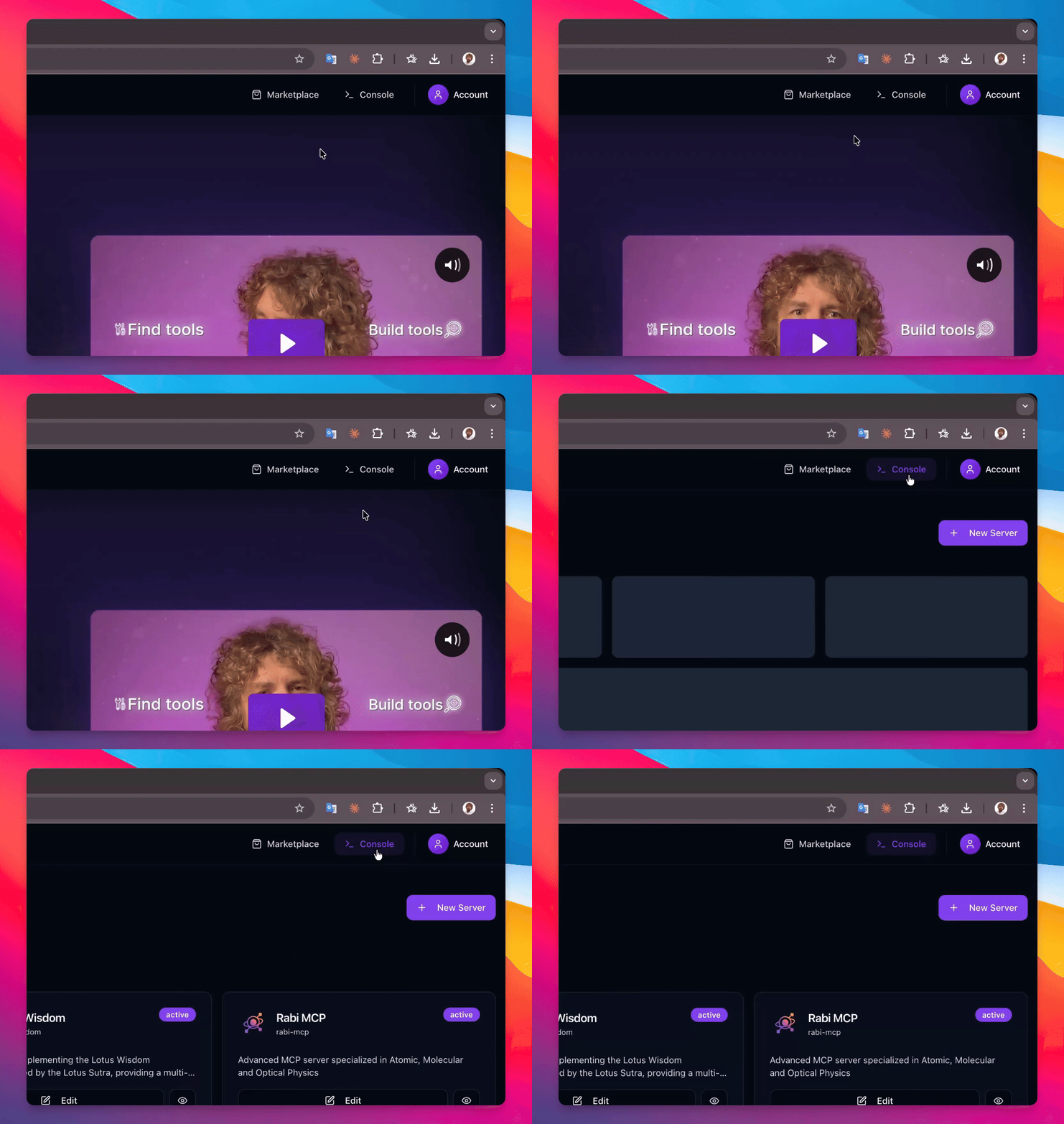
Step 1: Access Console
Open your console to manage the deployed MCPize server.
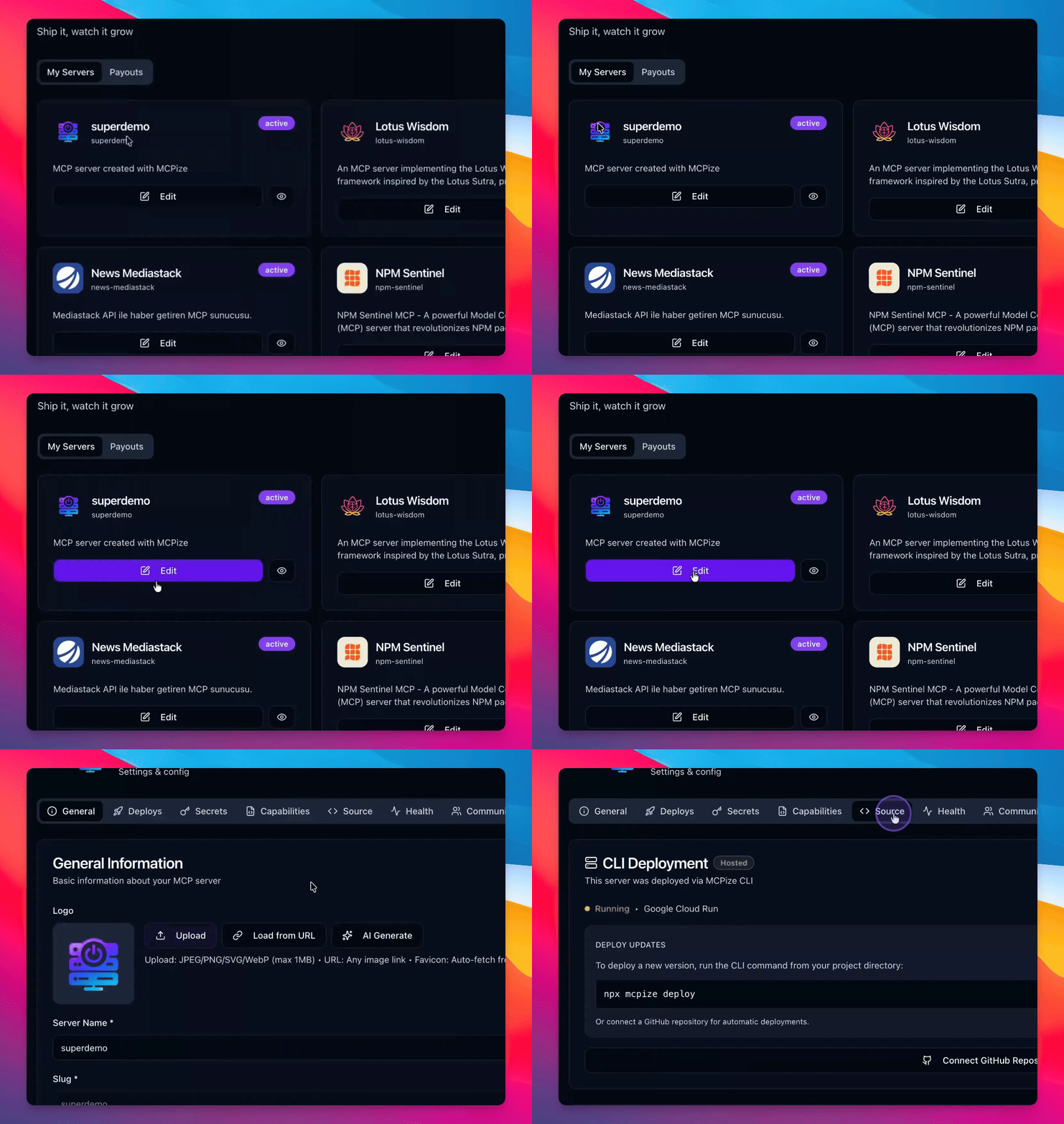
Step 2: Verify Server
Check the recently deployed server to ensure it is set up correctly.
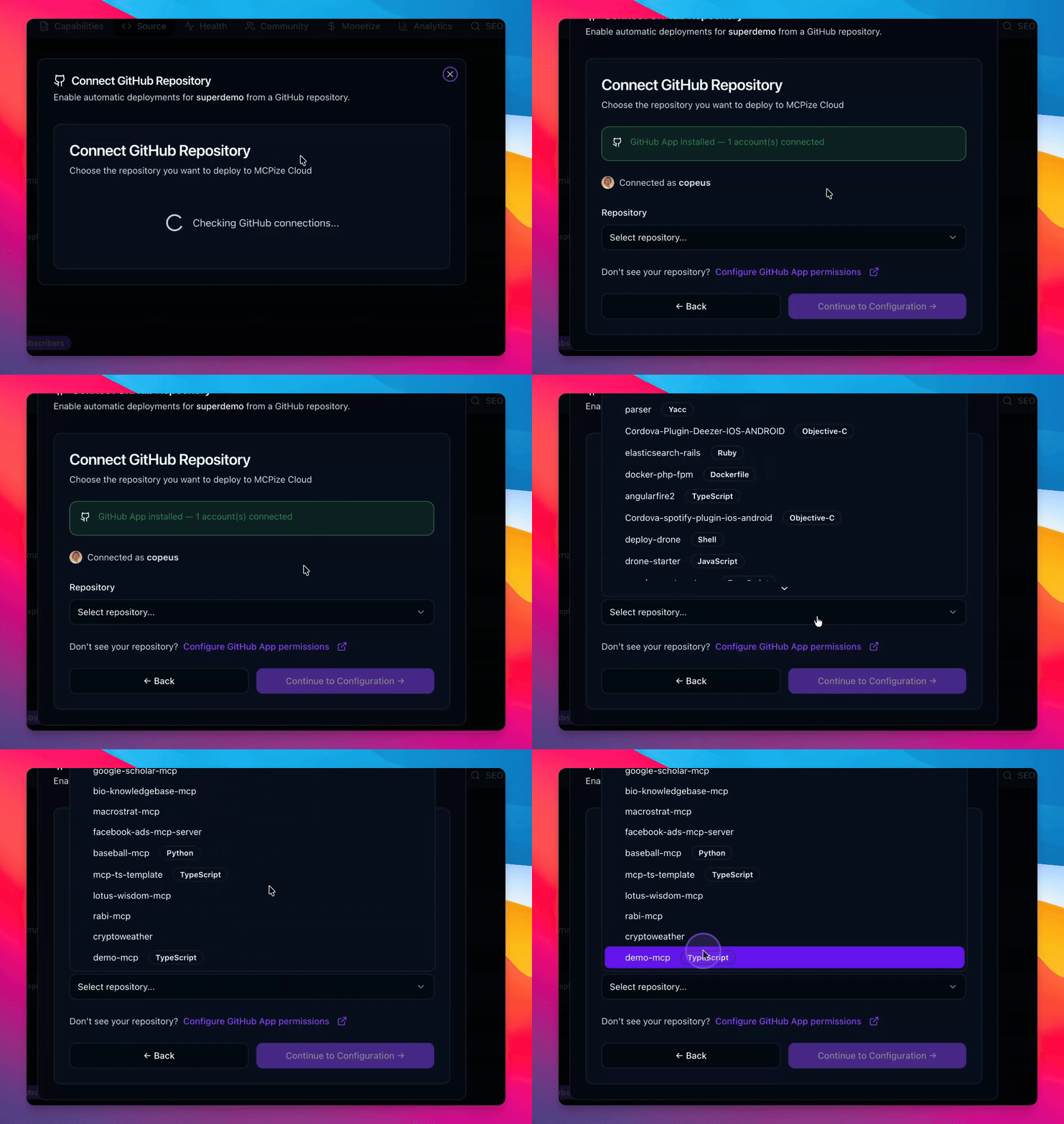
Step 3: Initiate Connection
Click on gap connect to start connecting your GitHub repository.
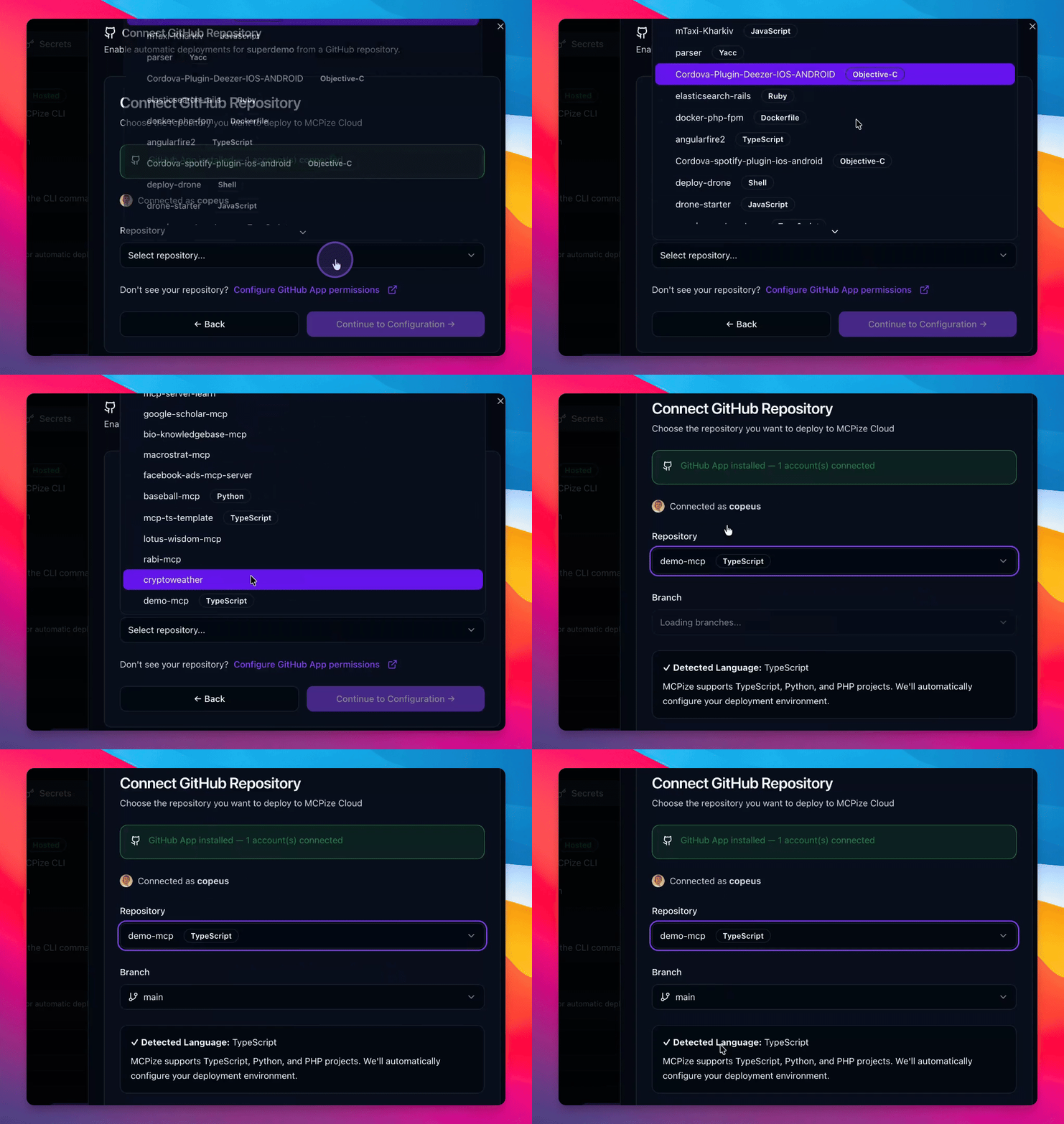
Step 4: Select Branch
Select your demo MCP branch to connect it to the server.
Step 5: Deploy
Click Deploy now to deploy the latest commit from the main branch.
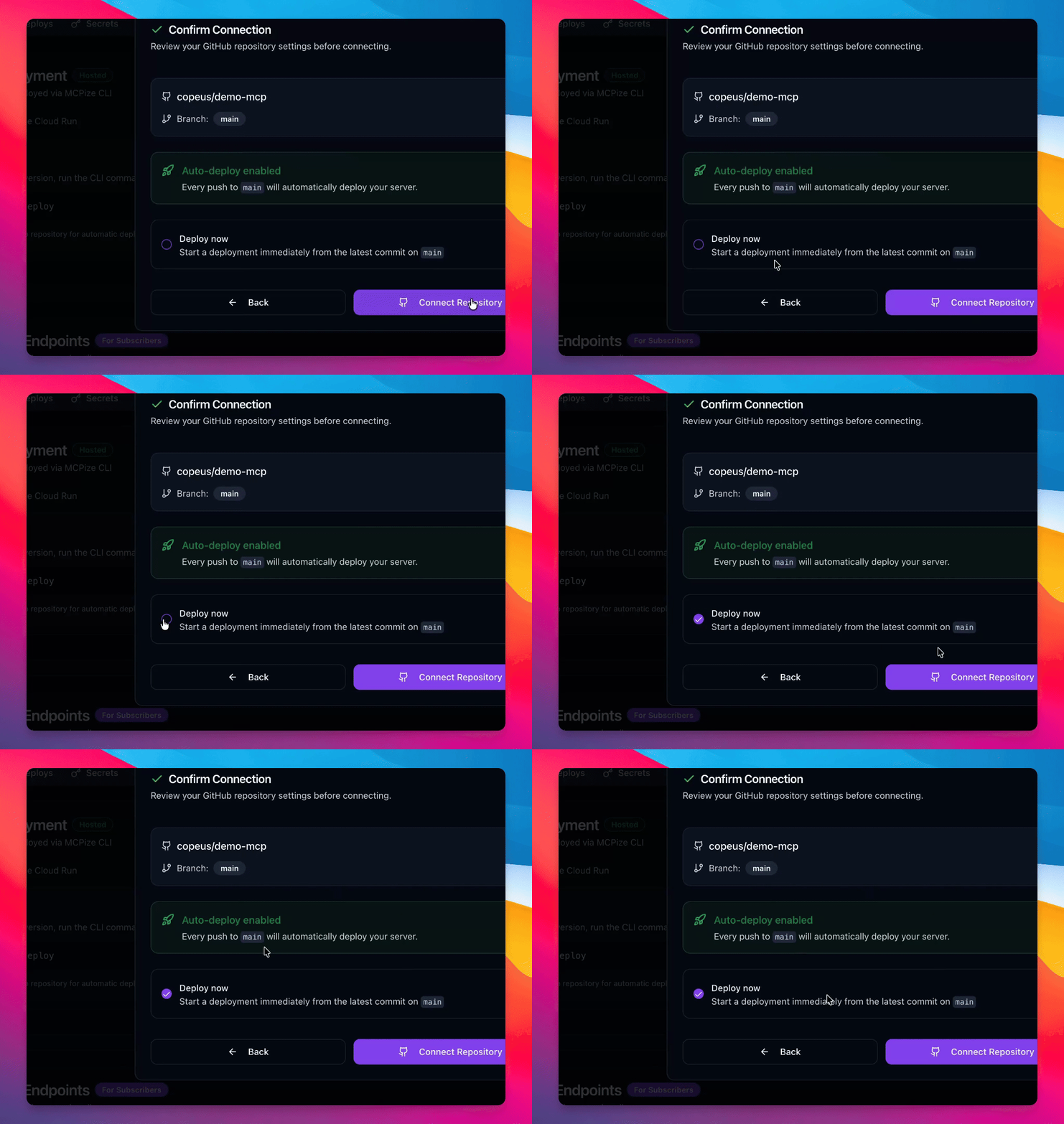
Step 6: Confirm Connection
Click connect to finalize the repository connection.
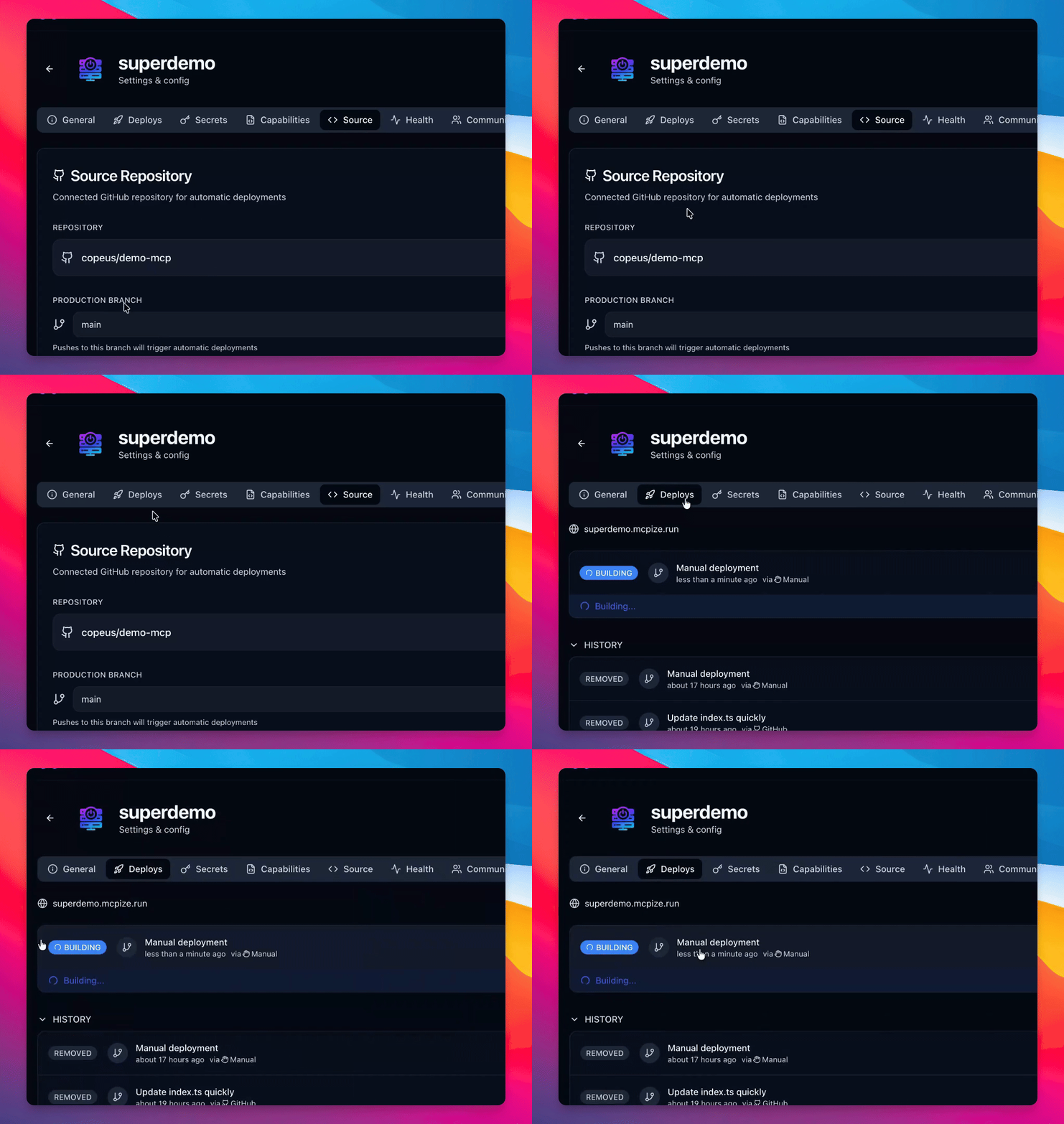
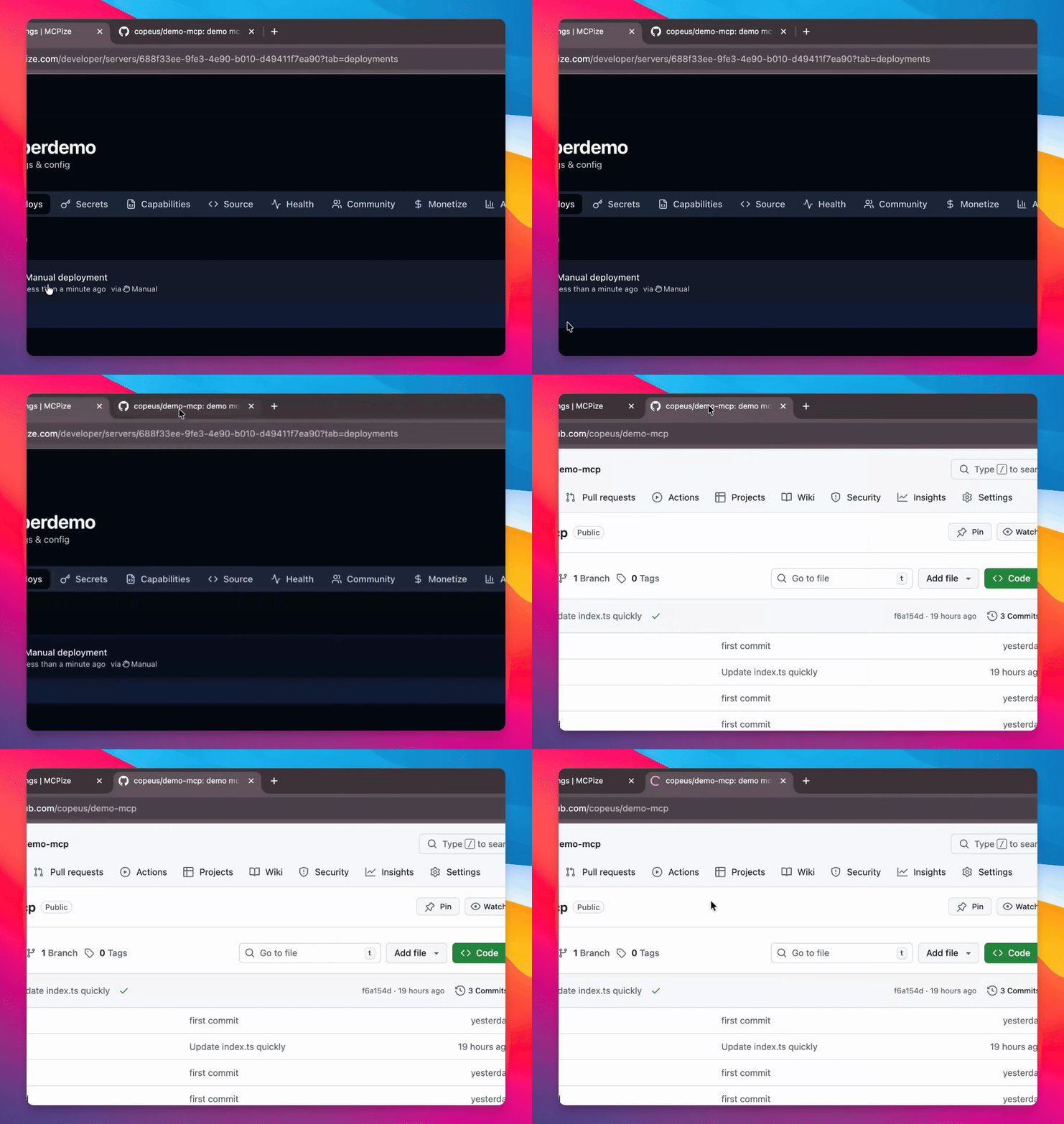
Step 7: Check Deploy Status
Refresh the page to view the deployment status in GitHub.
Step 8: Monitor Deployment
Wait a couple of minutes to see the deployment status change to active.
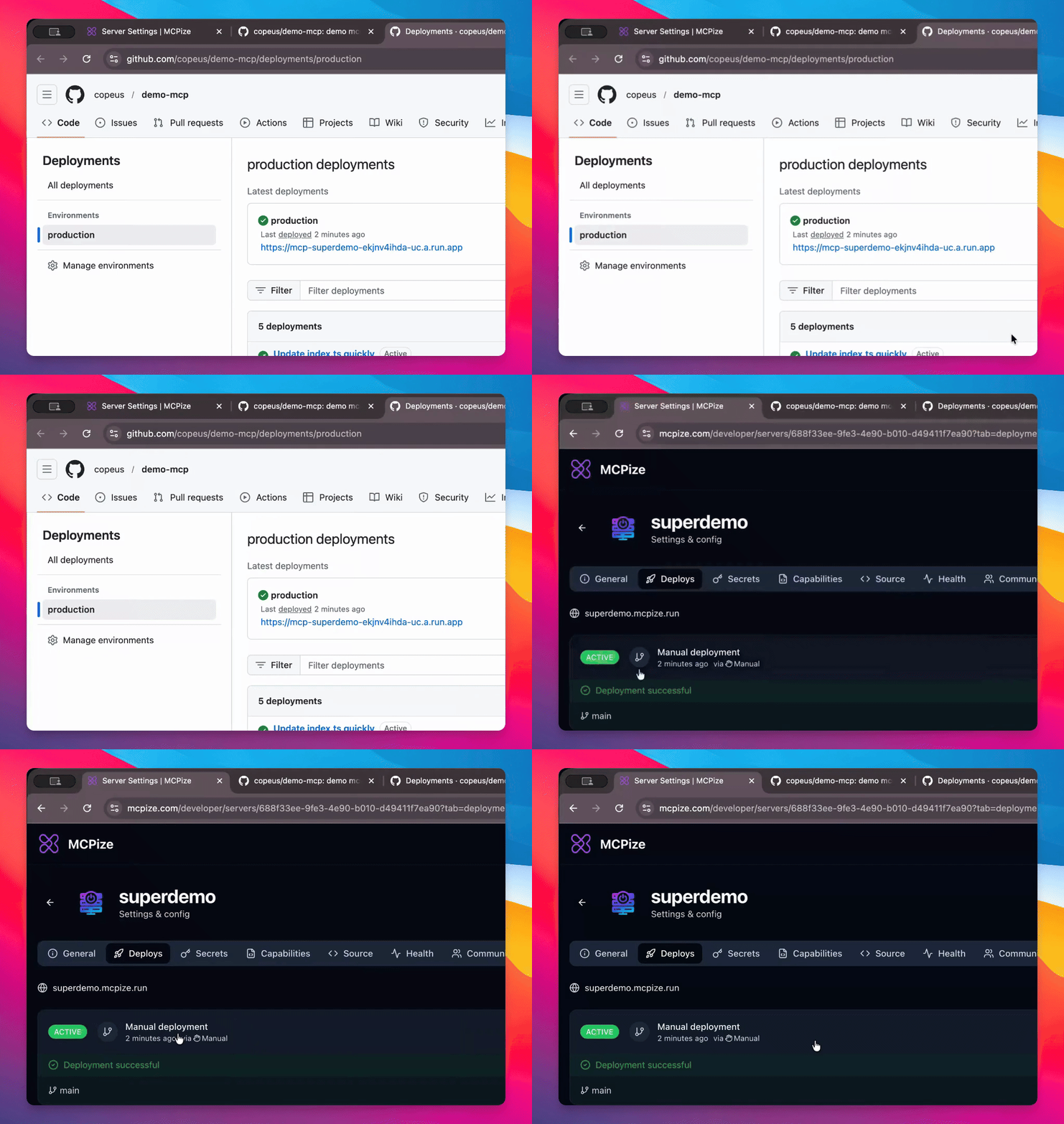
Step 9: Commit Changes
Make a simple commit by changing text in your file and add a commit message.
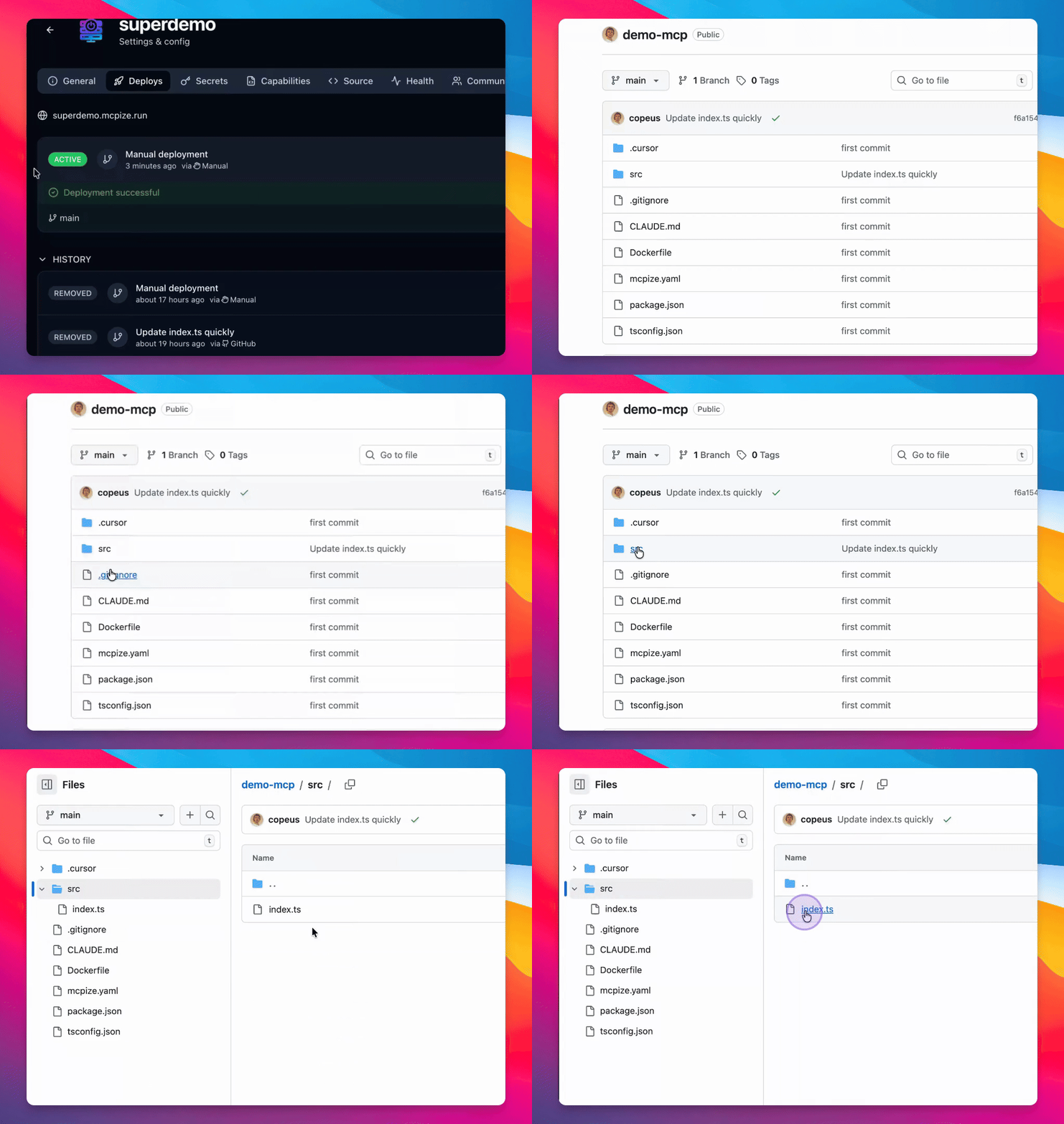
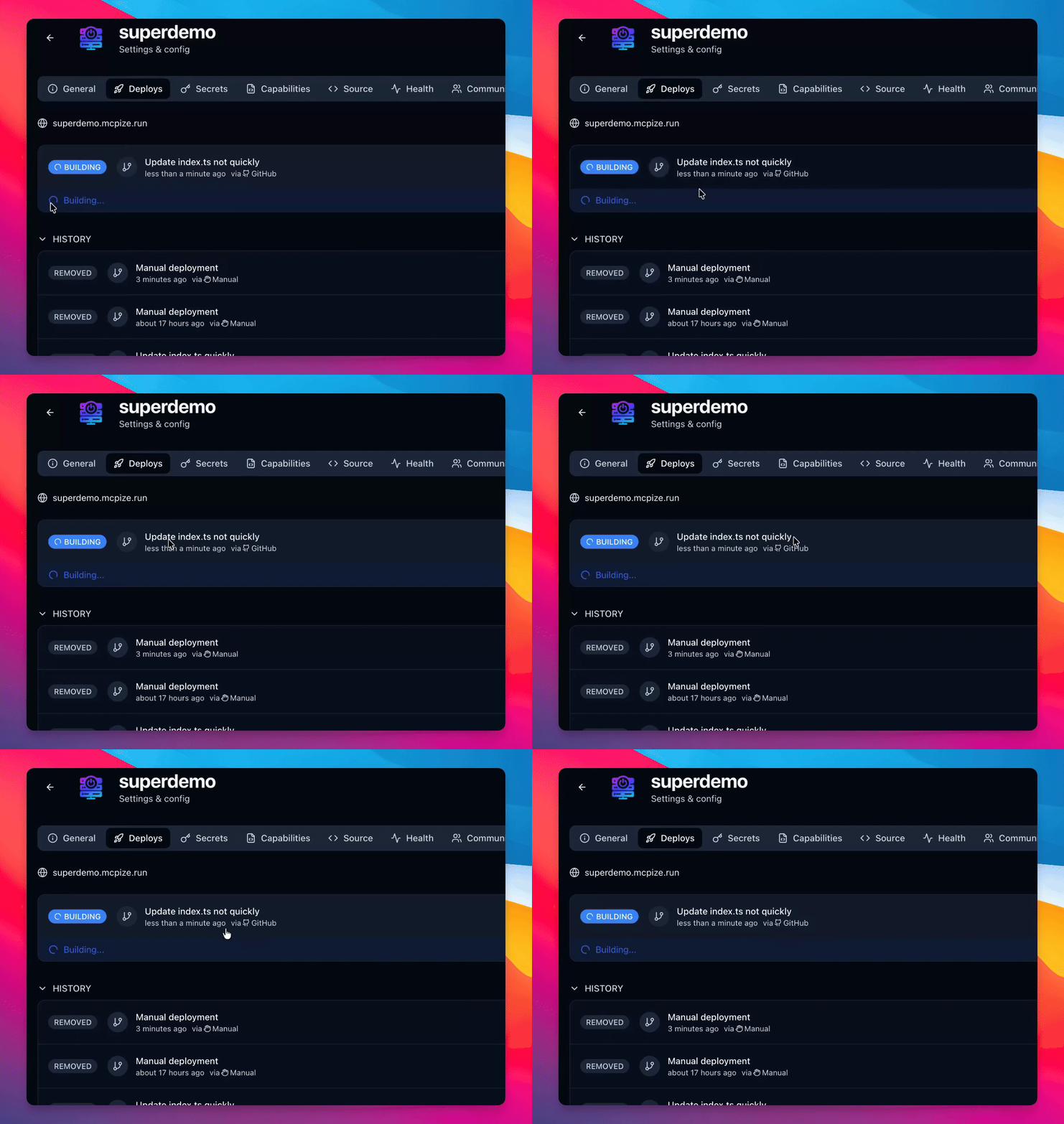
Step 10: Build Trigger
Observe that the build starts immediately after committing changes to GitHub.
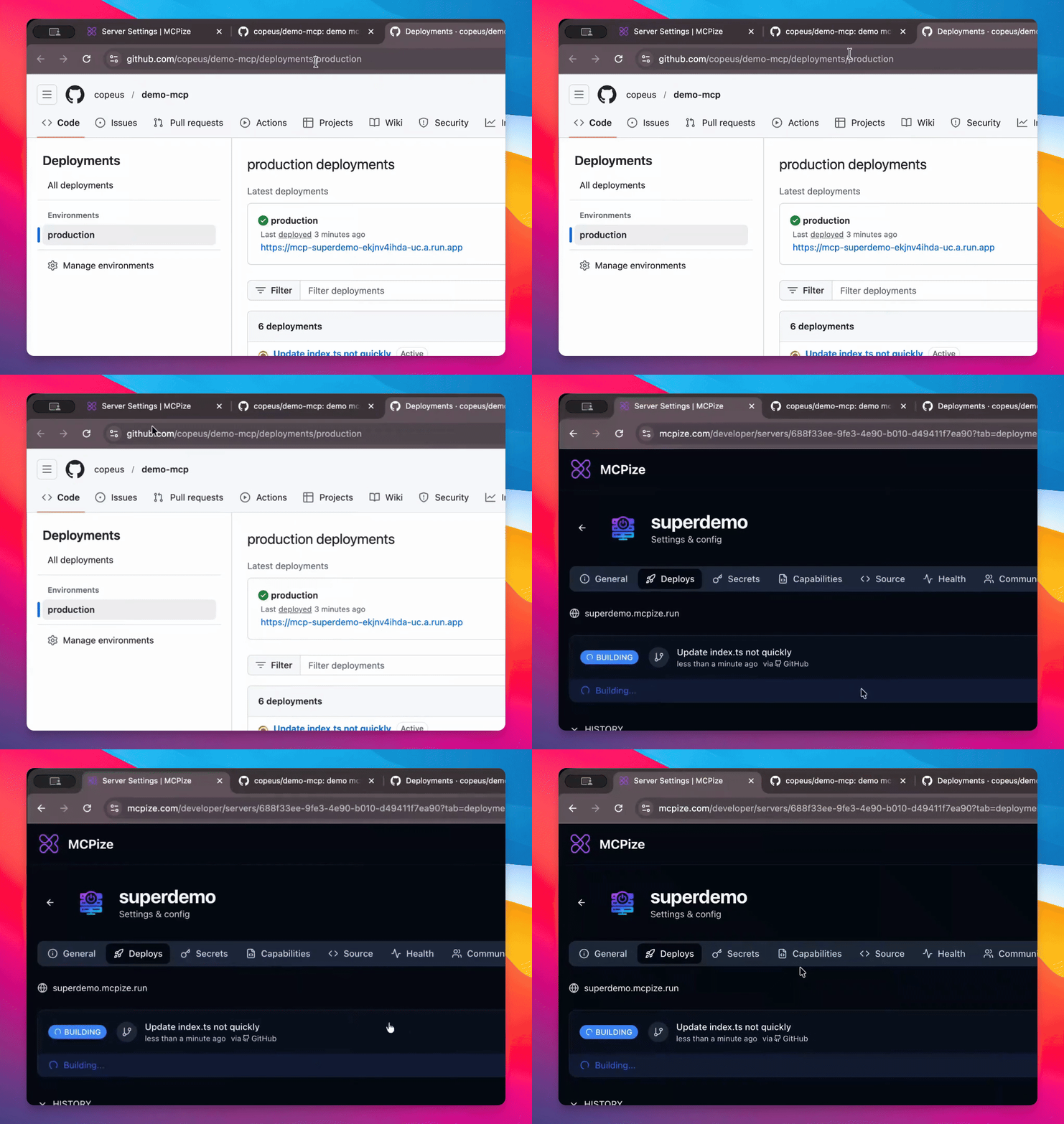
Step 11: Sync Code Base
Sync your code base with the deployment at the selected branch in GitHub.
Troubleshooting
Deployment fails
Check your GitHub branch settings and ensure correct permissions.
Connection issues
Verify your network connection and try reconnecting.
FAQ
How long does deployment take?
Deployment typically takes a few minutes.
Can I link multiple branches?
Yes, you can connect different branches to your MCPY server.