
Keep your own infra, but monetize through the MCPize gateway
TL;DR
Flow of 6: Self-Hosted Monetization
Step 1: Dashboard: click New Server, choose Connect Existing URL.
Step 2: Paste running MCP endpoint URL; click Test Connection.
Step 3: Set pricing (monthly); continue to Stripe Connect (blur UI). S
Step 4: Pass through wizard: add name, description, categories, docs URL.
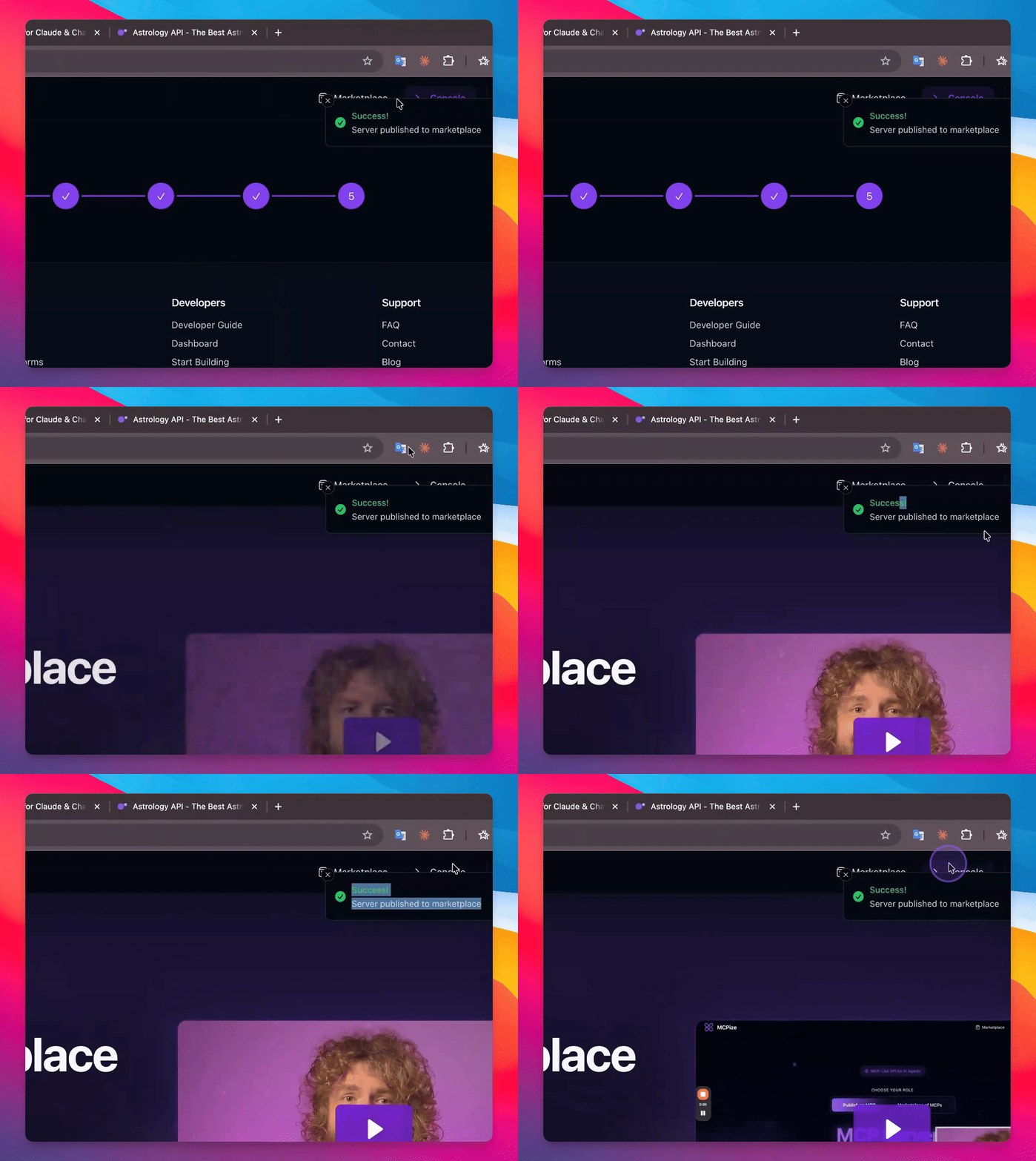
Step 5: Share URL with clients and view for revenue/usage
Step 6: Get rich!
Let's do it together!
Step 1: Access Console
Open the console for your MCP server.
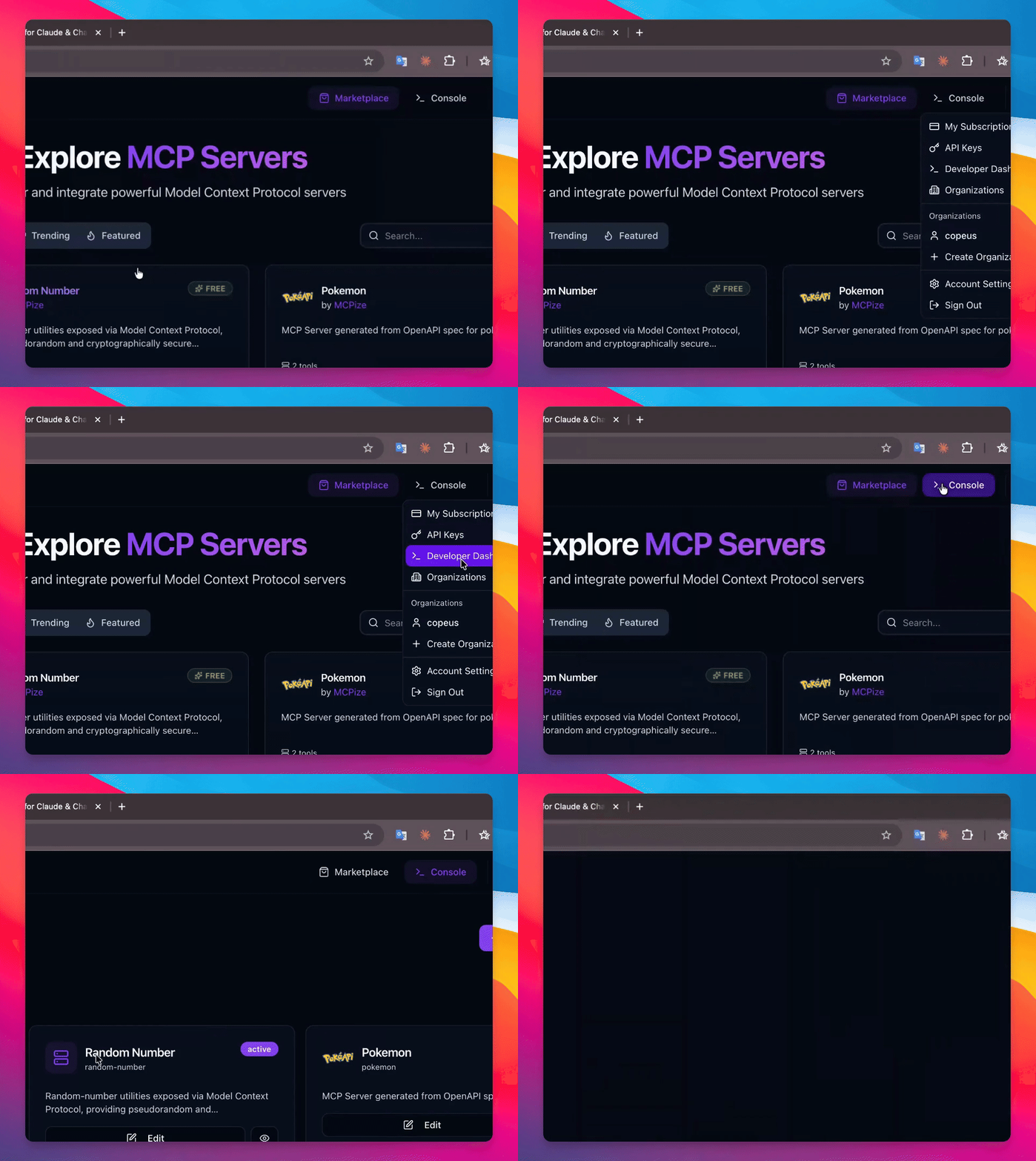
Step 2: Create Server
Click to create a new server and enter the MCP link.
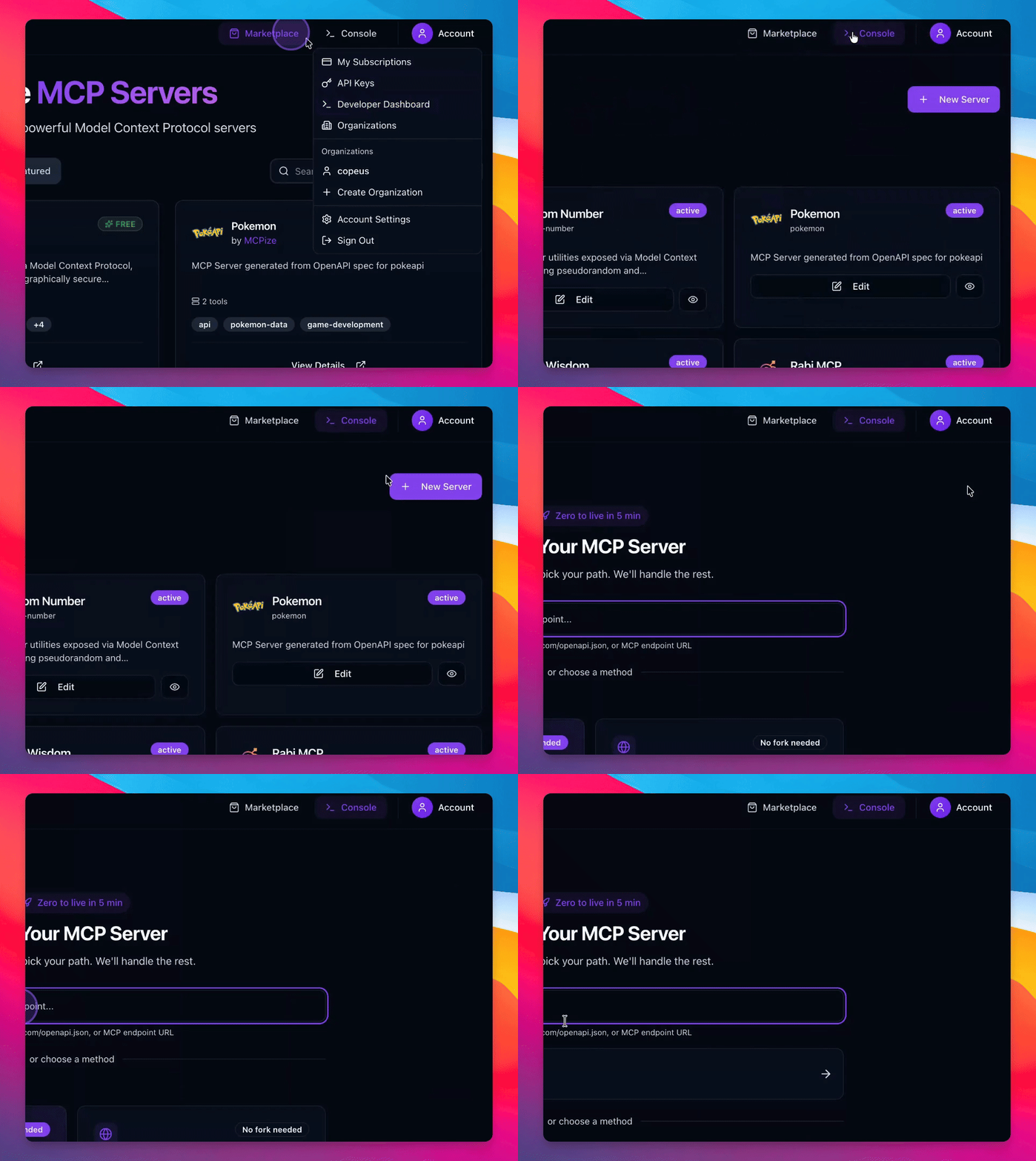
Step 3: Detect Server
The system detects the MCP server endpoint hosted on your server.
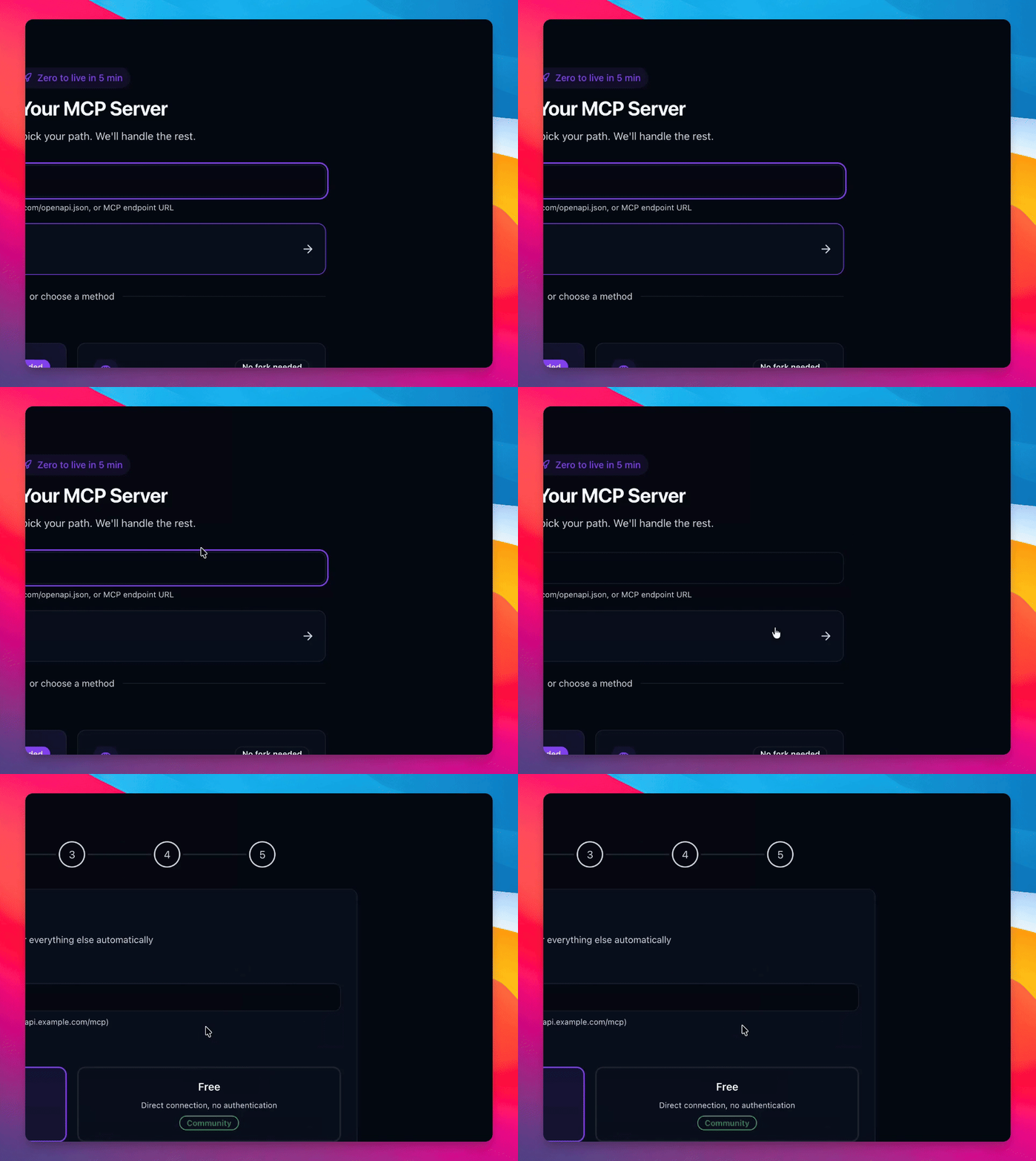
Step 4: Start Monetization
Click next to begin the monetization process.
Step 5: Discover Capabilities
Wait while the system discovers server capabilities and tools.
Step 6: Fill Server Details
Enter the server name, slug, description, category, and website for presentation.
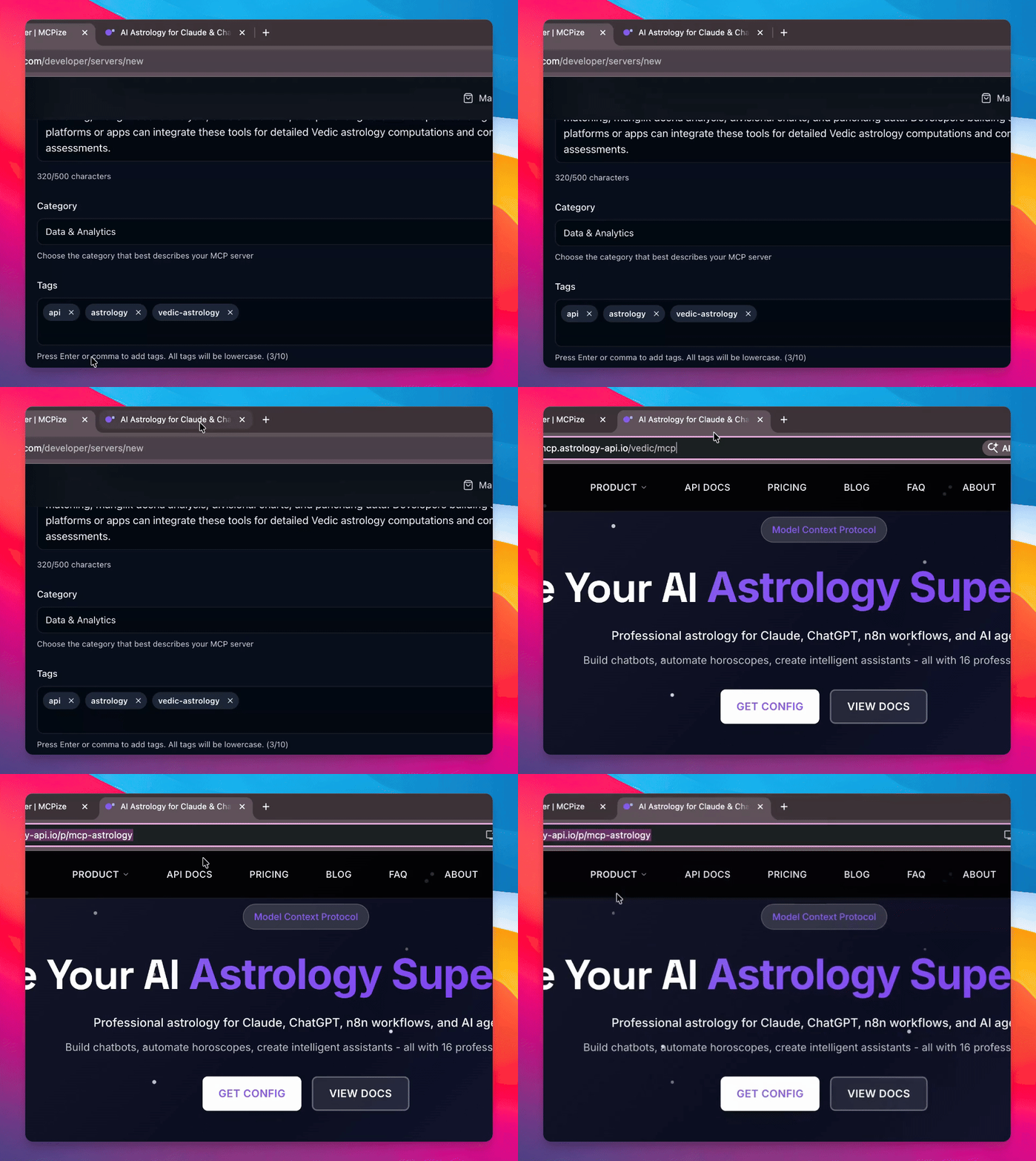
Step 7: Choose Monetization
Select the monetize option to proceed with monetization.
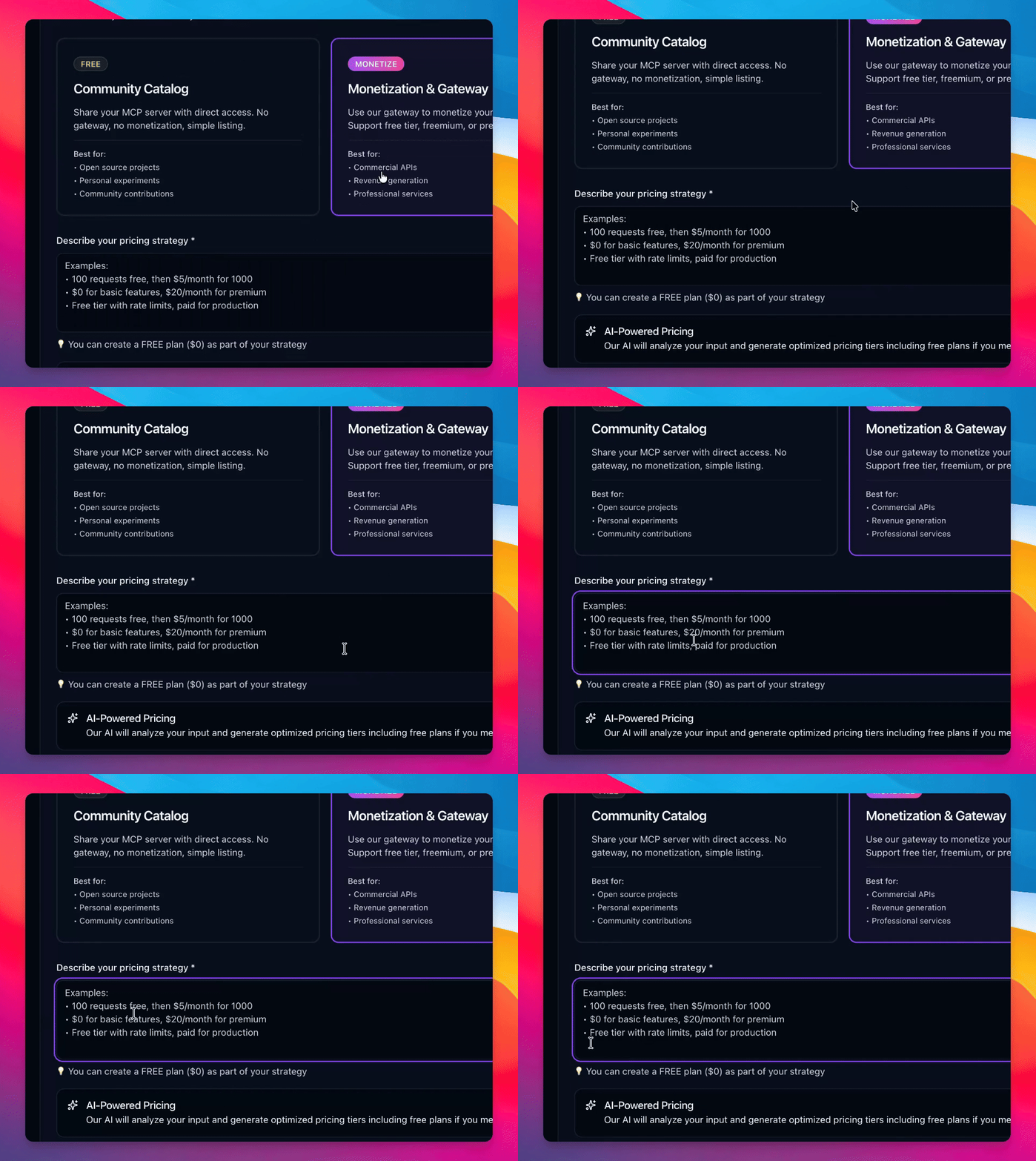
Step 8: Configure Plans
Enter your request plans in plain text format for monetization.
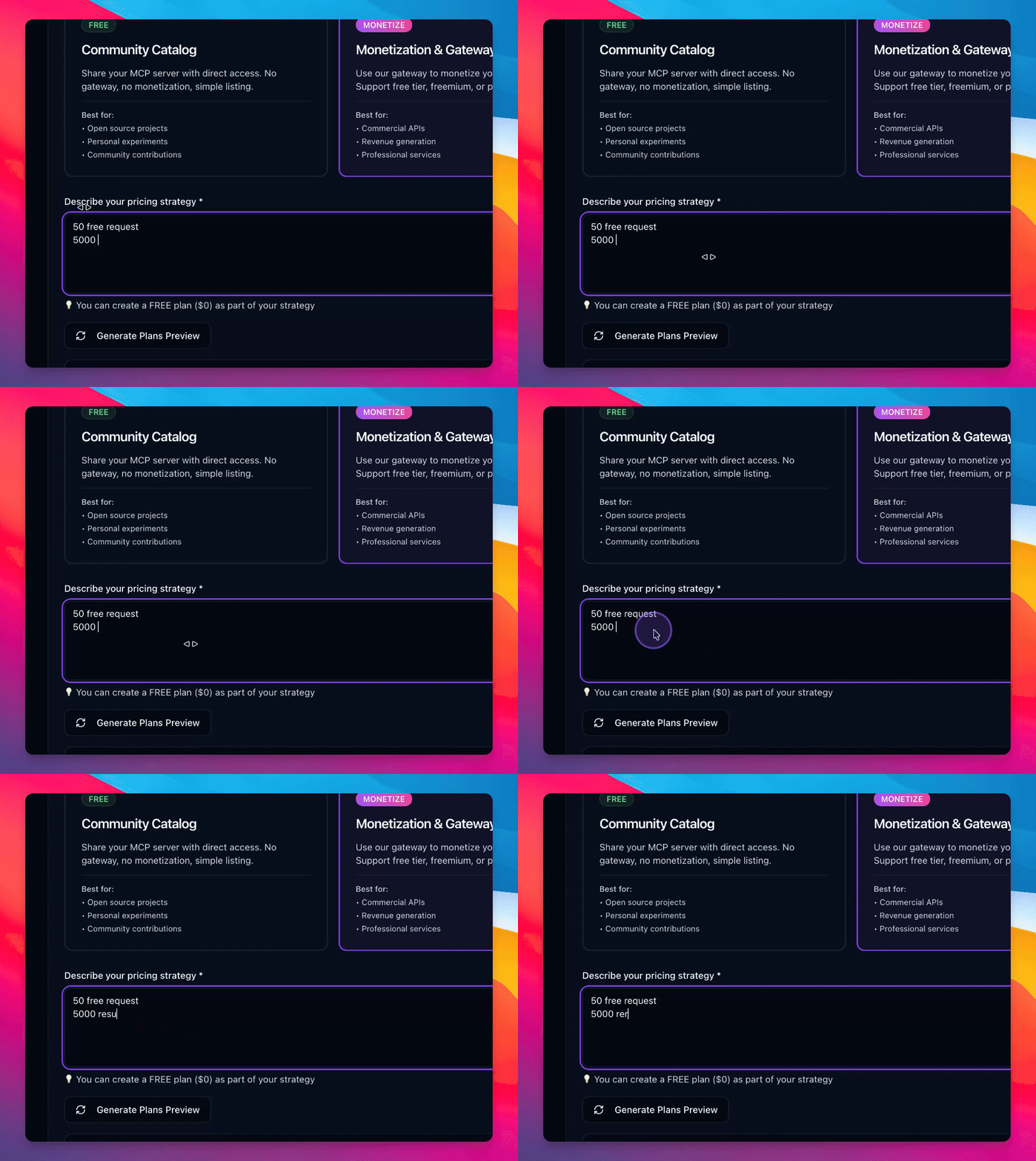
Step 9: Generate Preview
Generate preview plans to review your configurations.
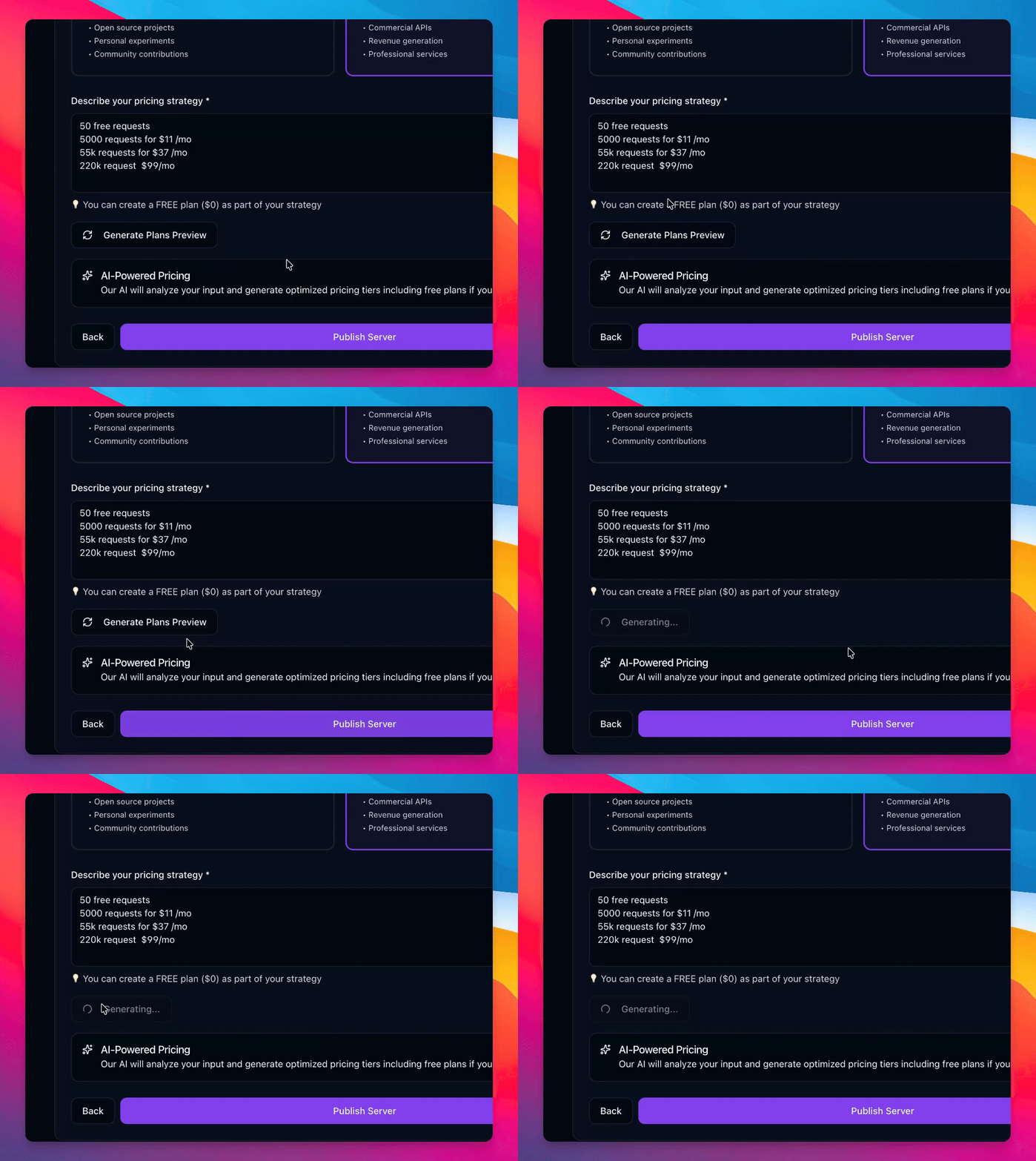
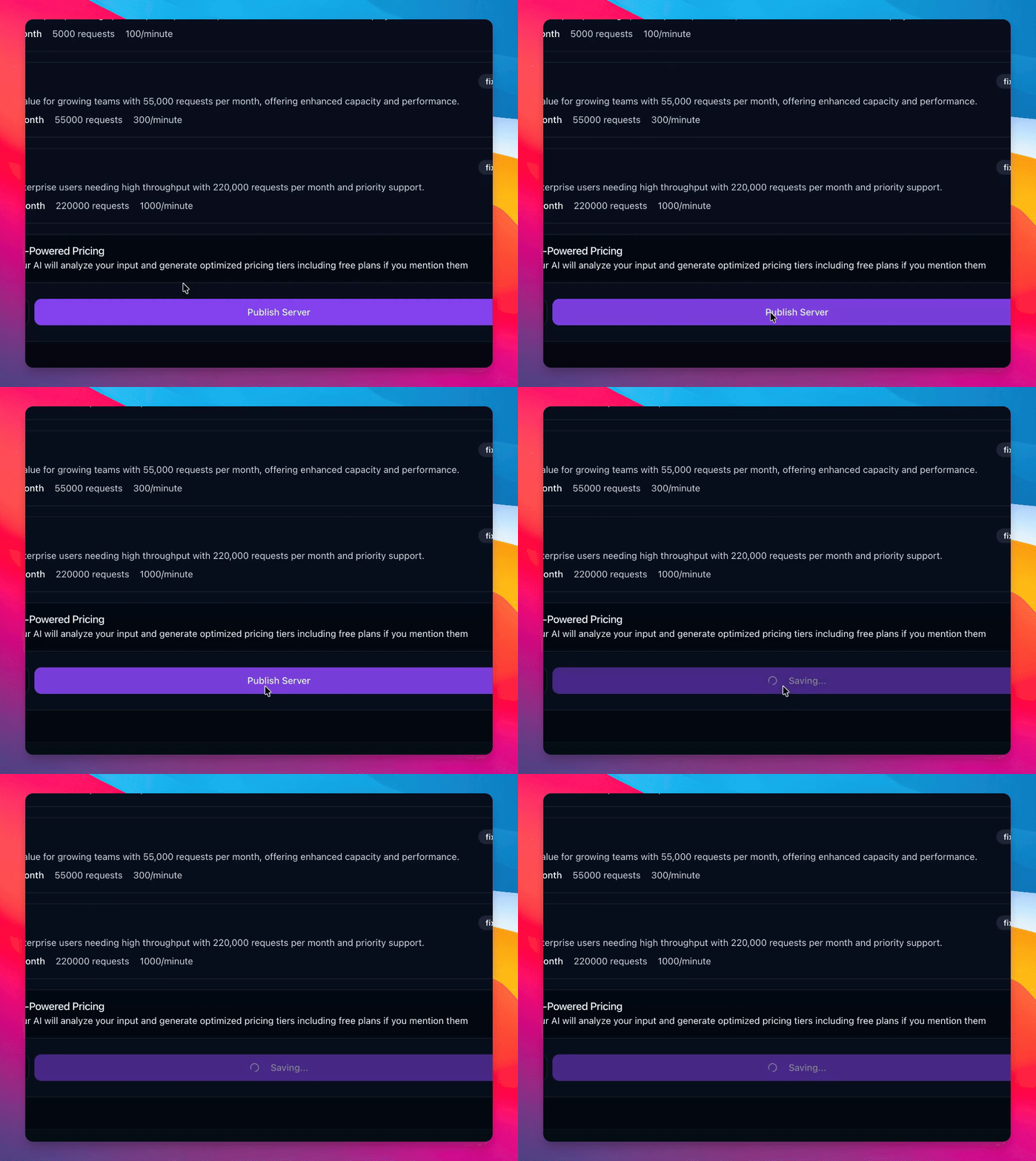
Step 10: Publish Server
Publish your server to make it available for use and subscriptions.
Step 11: Confirm Availability
Check the console to confirm the server is available with defined plans.