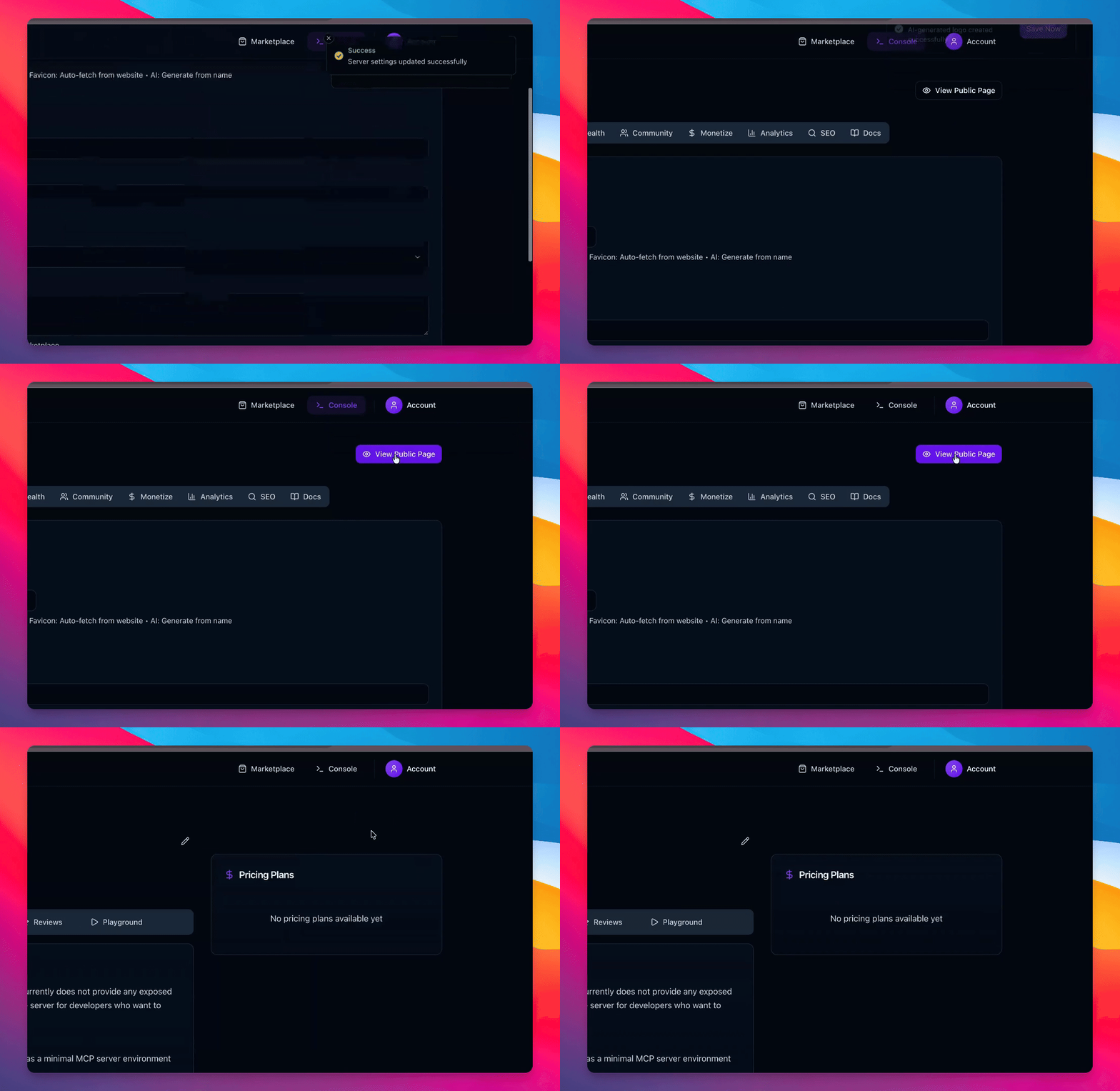

Step by step guide
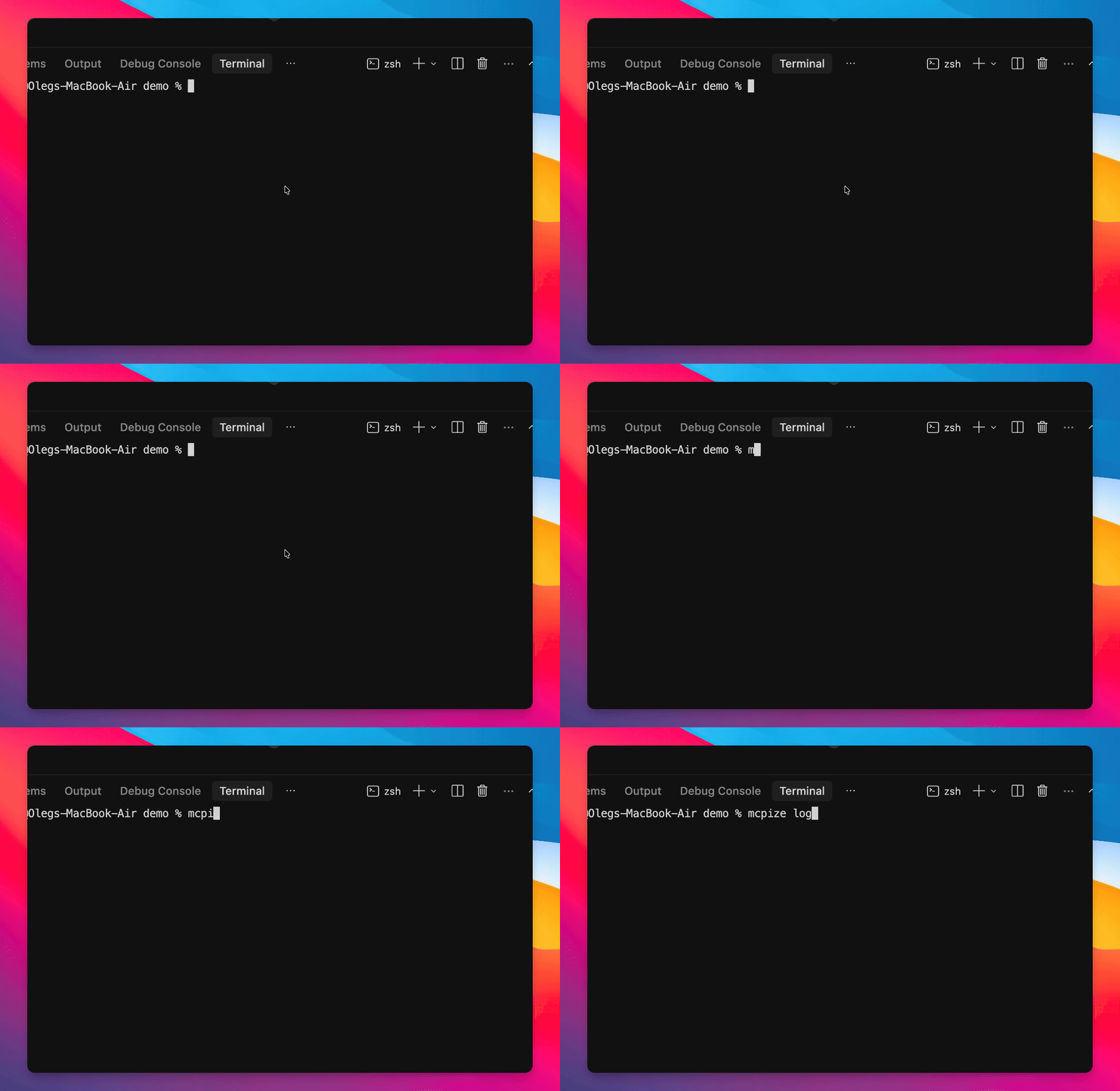
Step 1: Sign In to CLI
Use the command mcpize login to sign in.
You are logged in successfully.
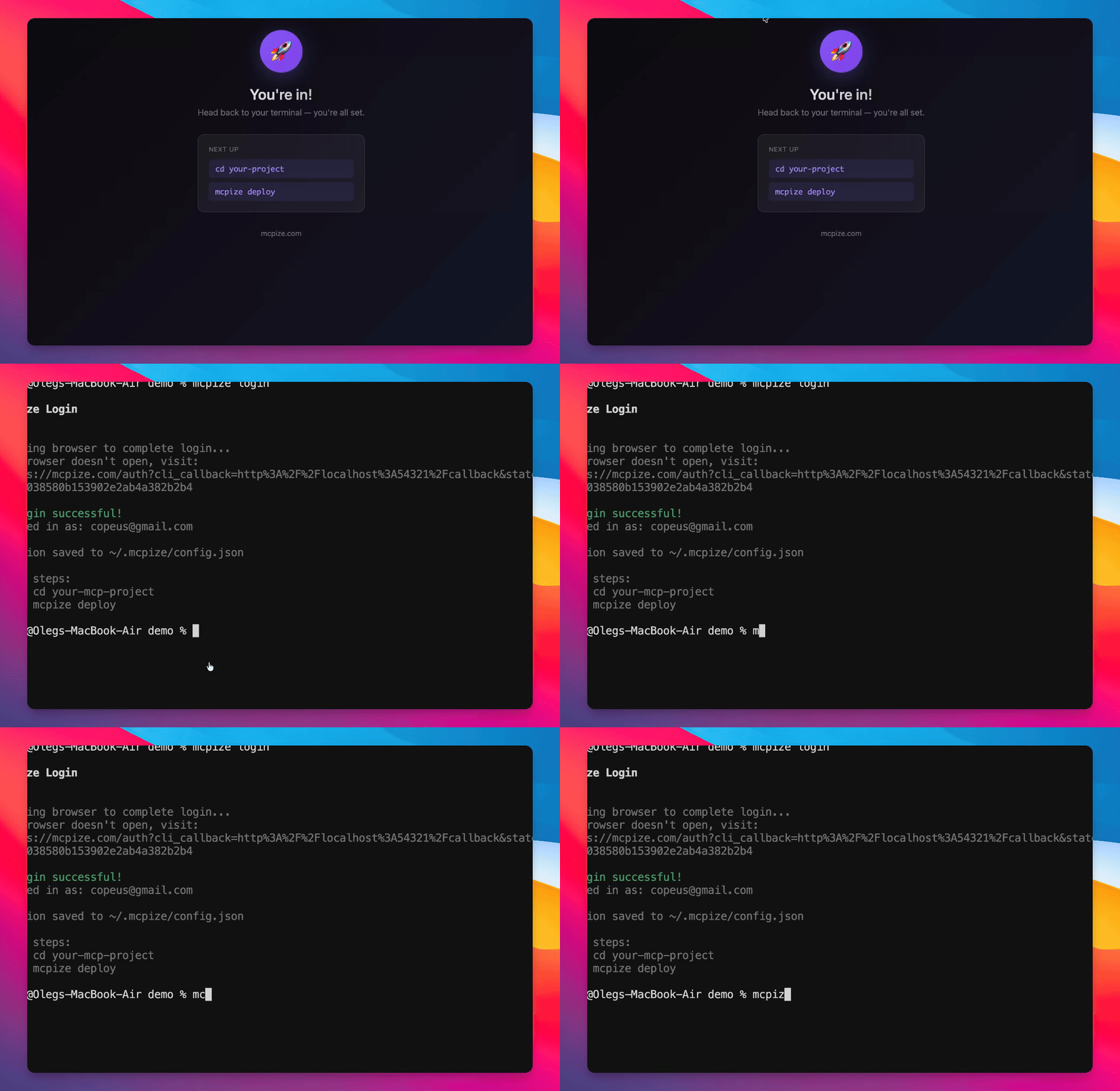
Step 2: Deploy the Server
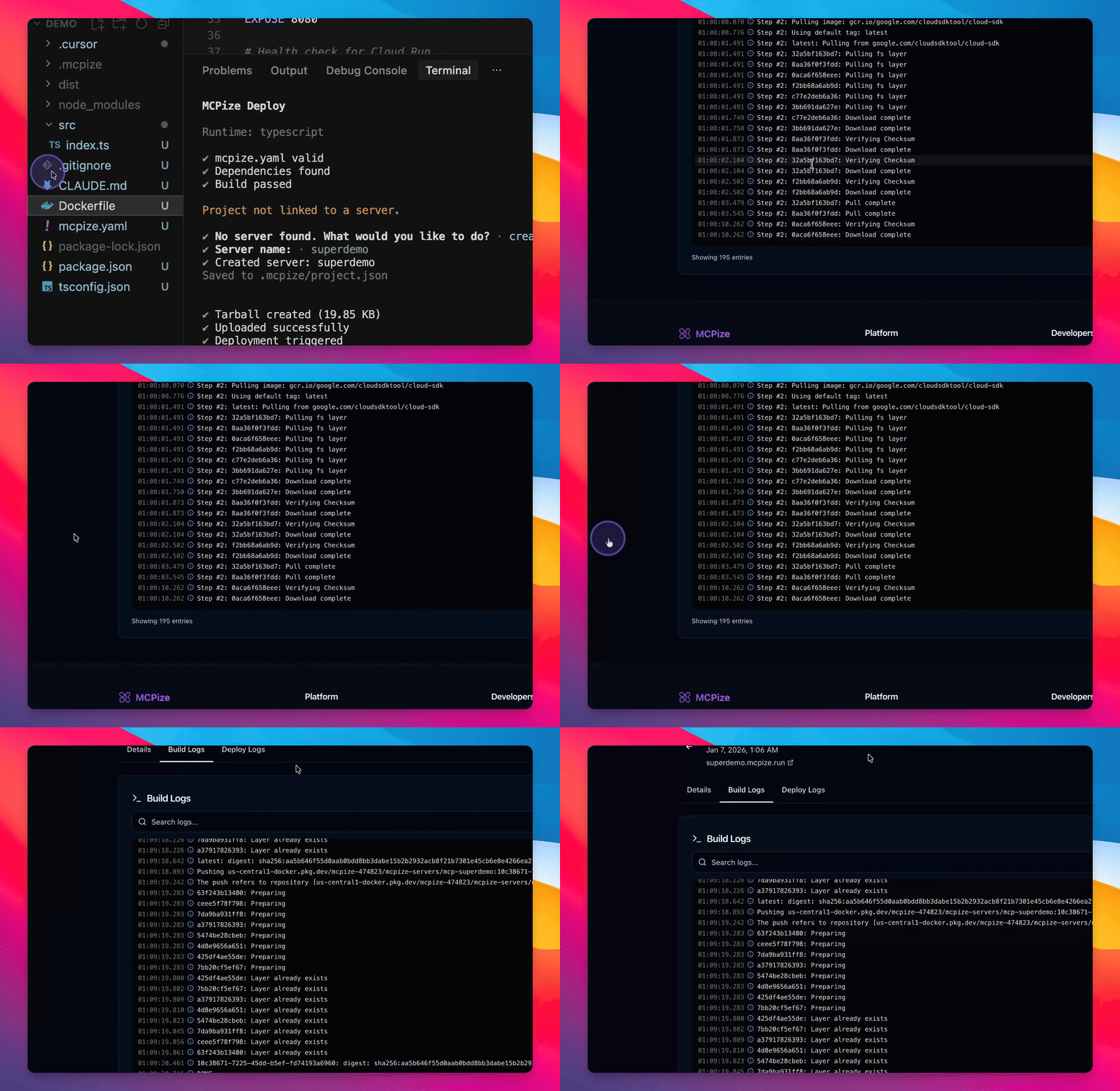
Run the command mcpize deploy to initiate server deployment.
The server deployment is in progress.
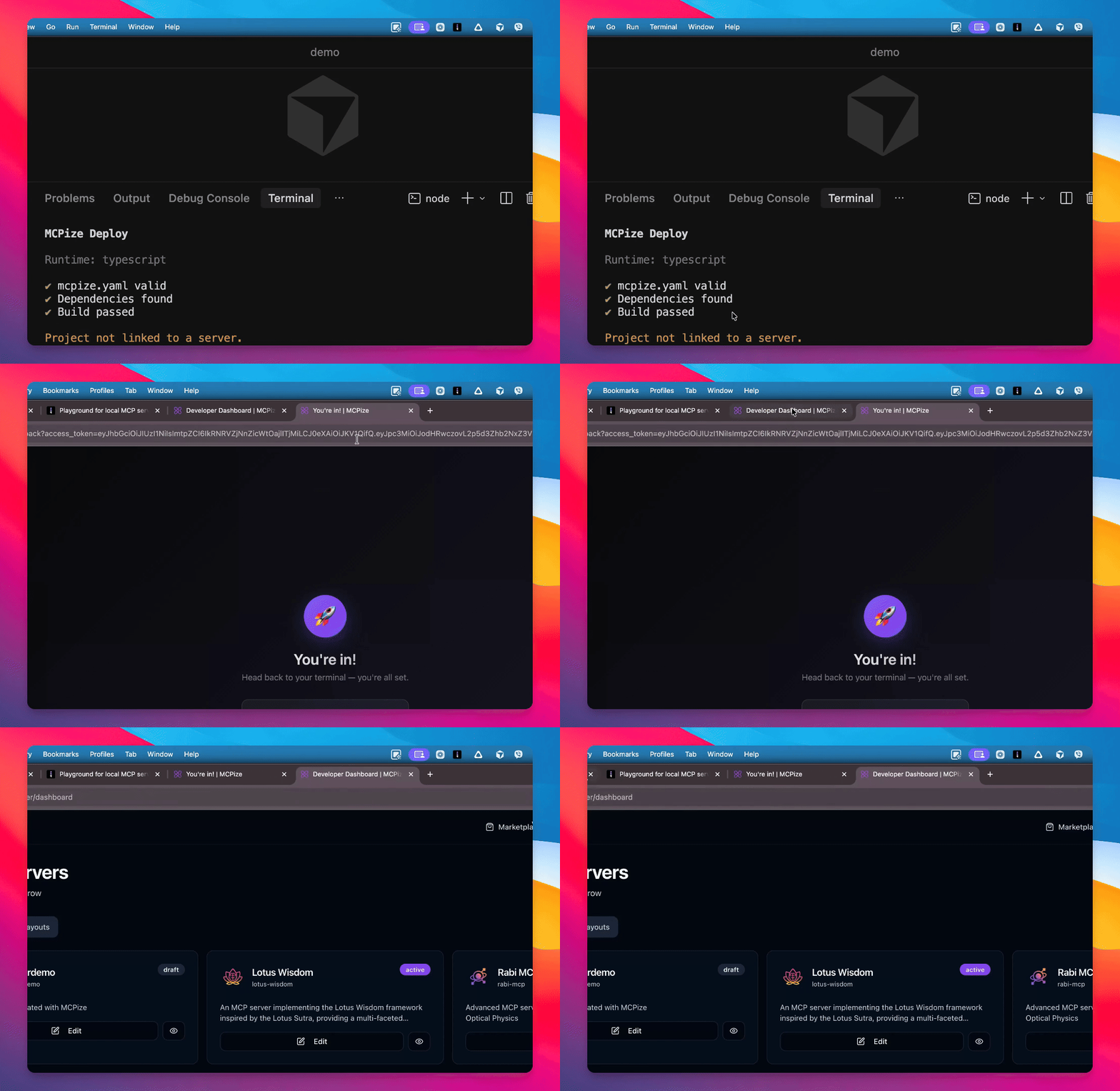
Step 3: Monitor Deployment Status
Check the developer console to view the server status.
The server status will show as pending during initialization.
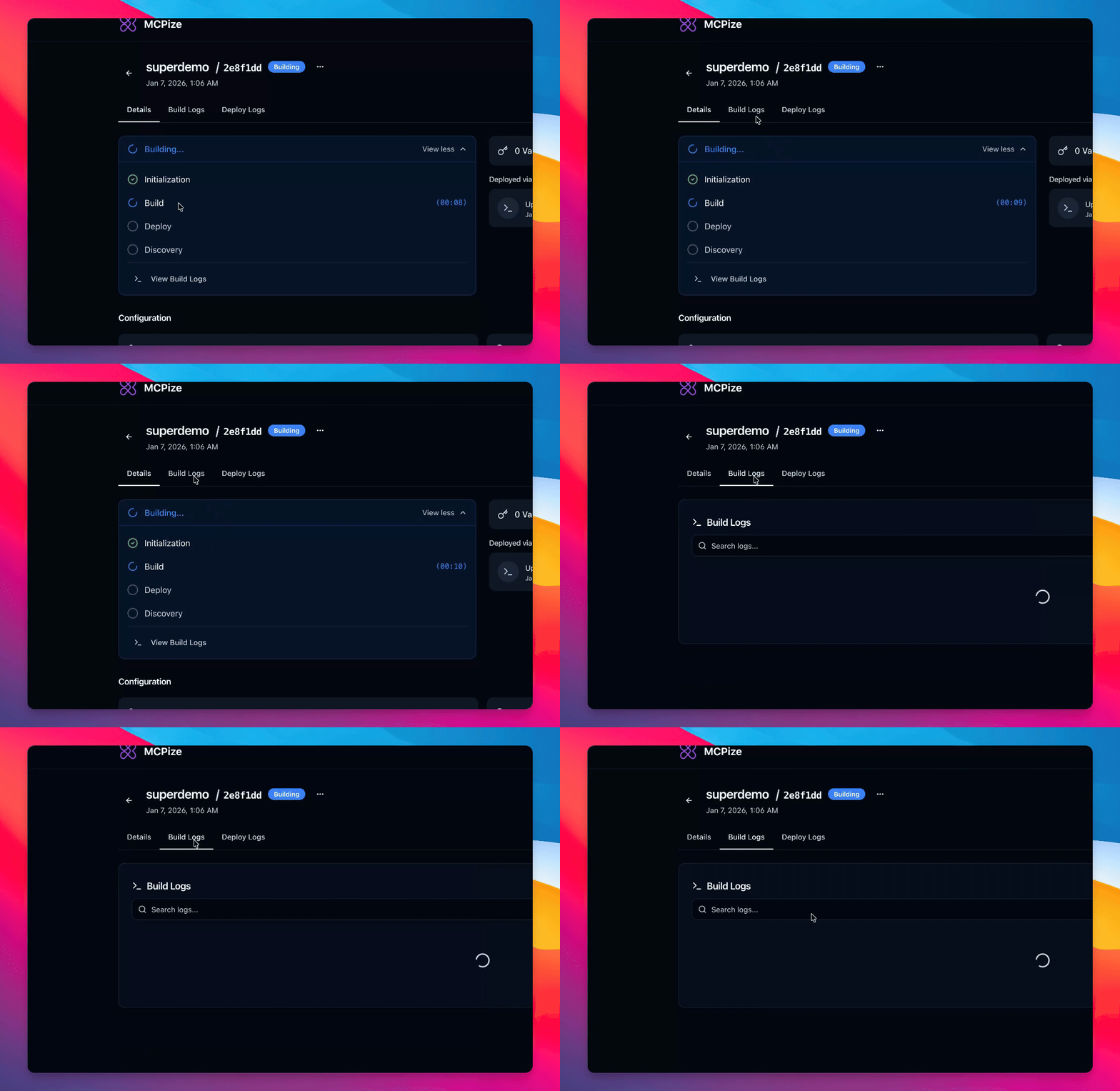
Step 4: View Build Logs
Check the build logs for progress updates.
The build process is updating continuously.
Step 5: Confirm Server Activation
Wait until the server is active and marked as deployed.
The server deployment is successful.
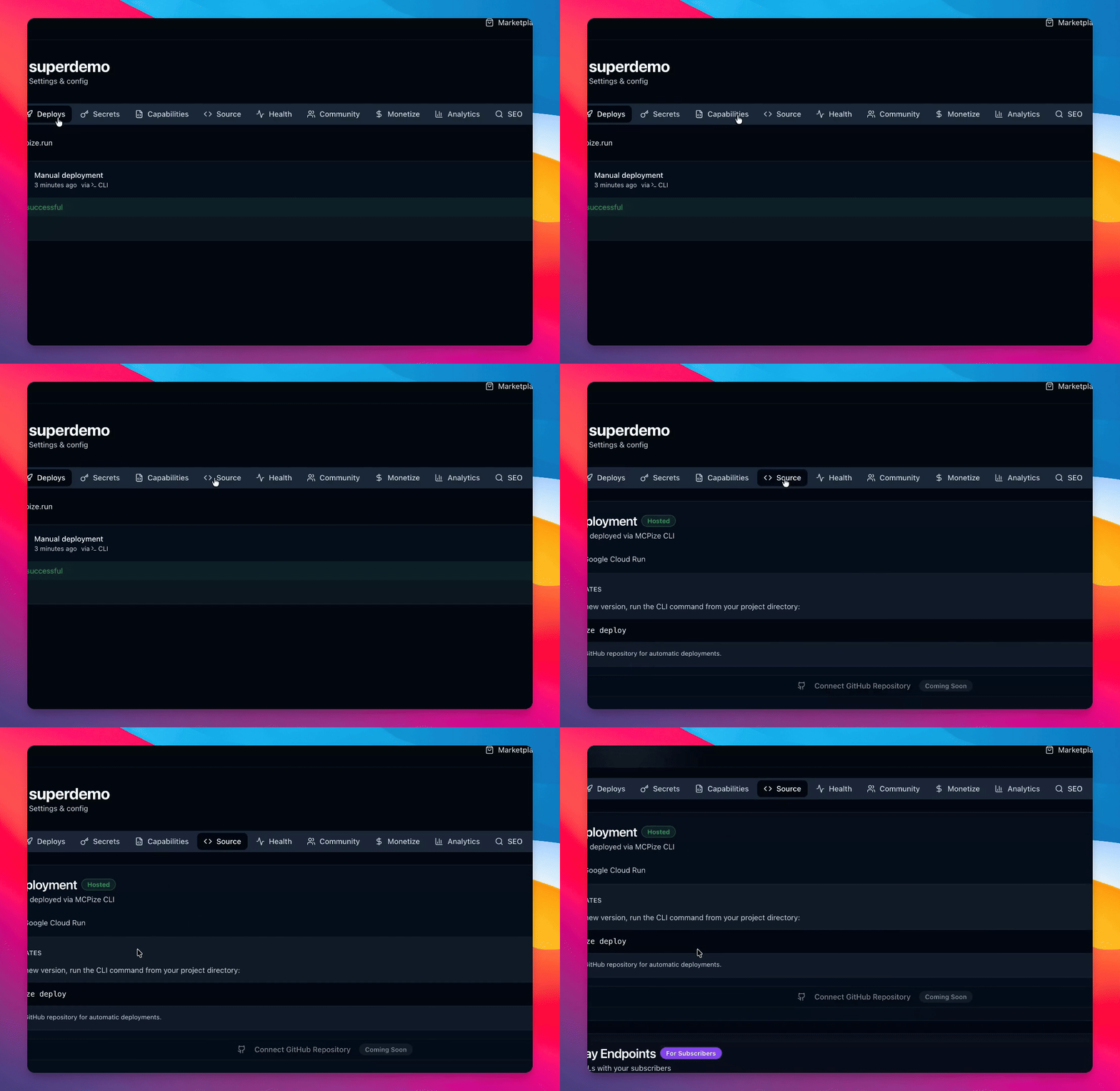
Step 6: Configure Server Settings
Access the source tab to share the server and track its console.
Step 7: Generate Server Logo
Generate a logo for your server.
Save the logo once generated.

Step 8: Provide Additional Information
Fill in additional details for your server.
Step 9: Set Server to Public
Make the server public for access.