

Let's do it together!
Step 1: Open McPies Playground
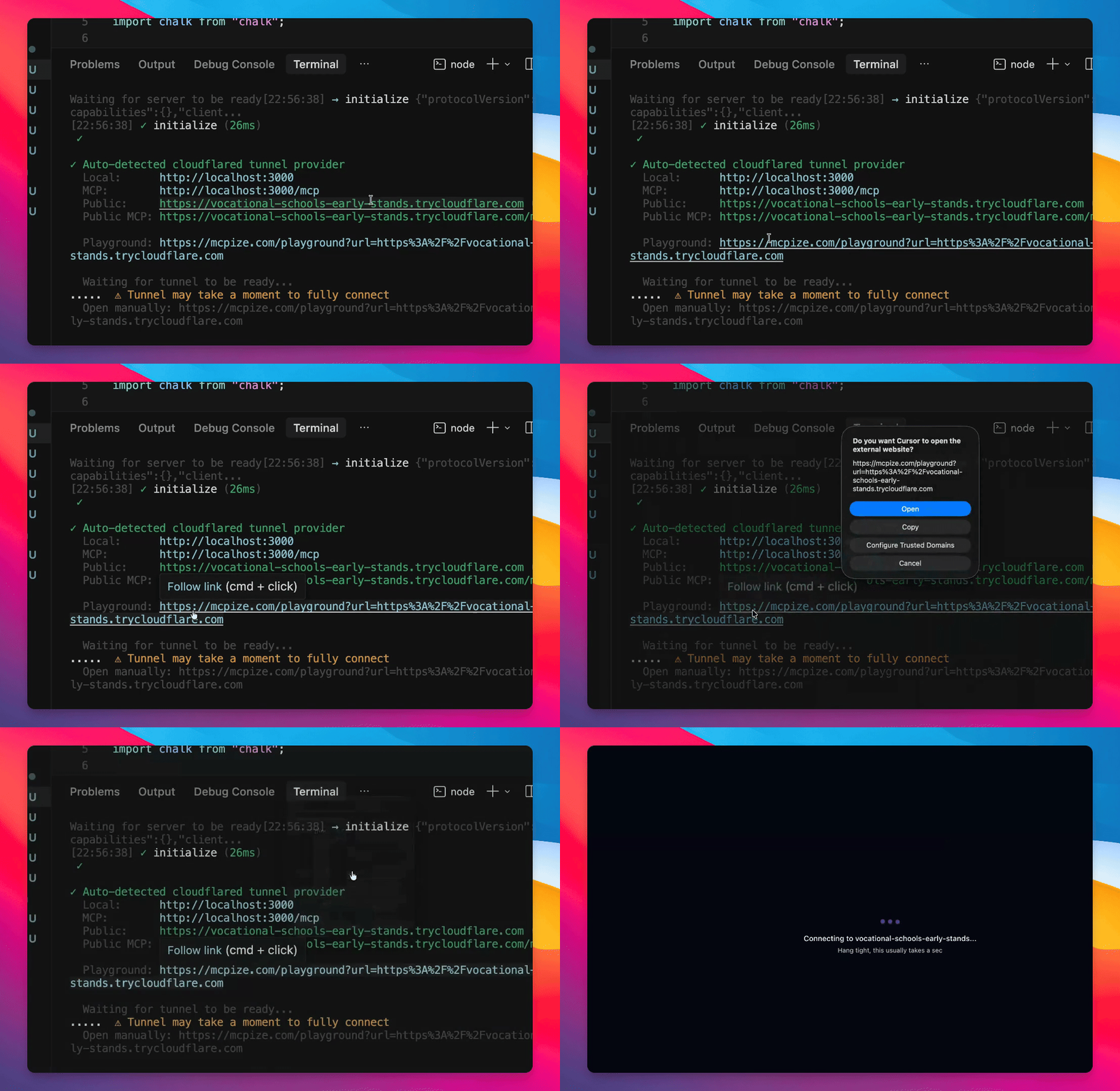
Run the command McPies --play in your CLI to access the Playground.
Ensure McPies is installed before running this command.
Step 2: Wait for Initialization
Allow a few seconds for the server to initialize.
Step 3: Access the Playground in Browser
Click to open the Playground in your browser.
Step 4: Test Help Tool
Execute the help tool to see available commands.
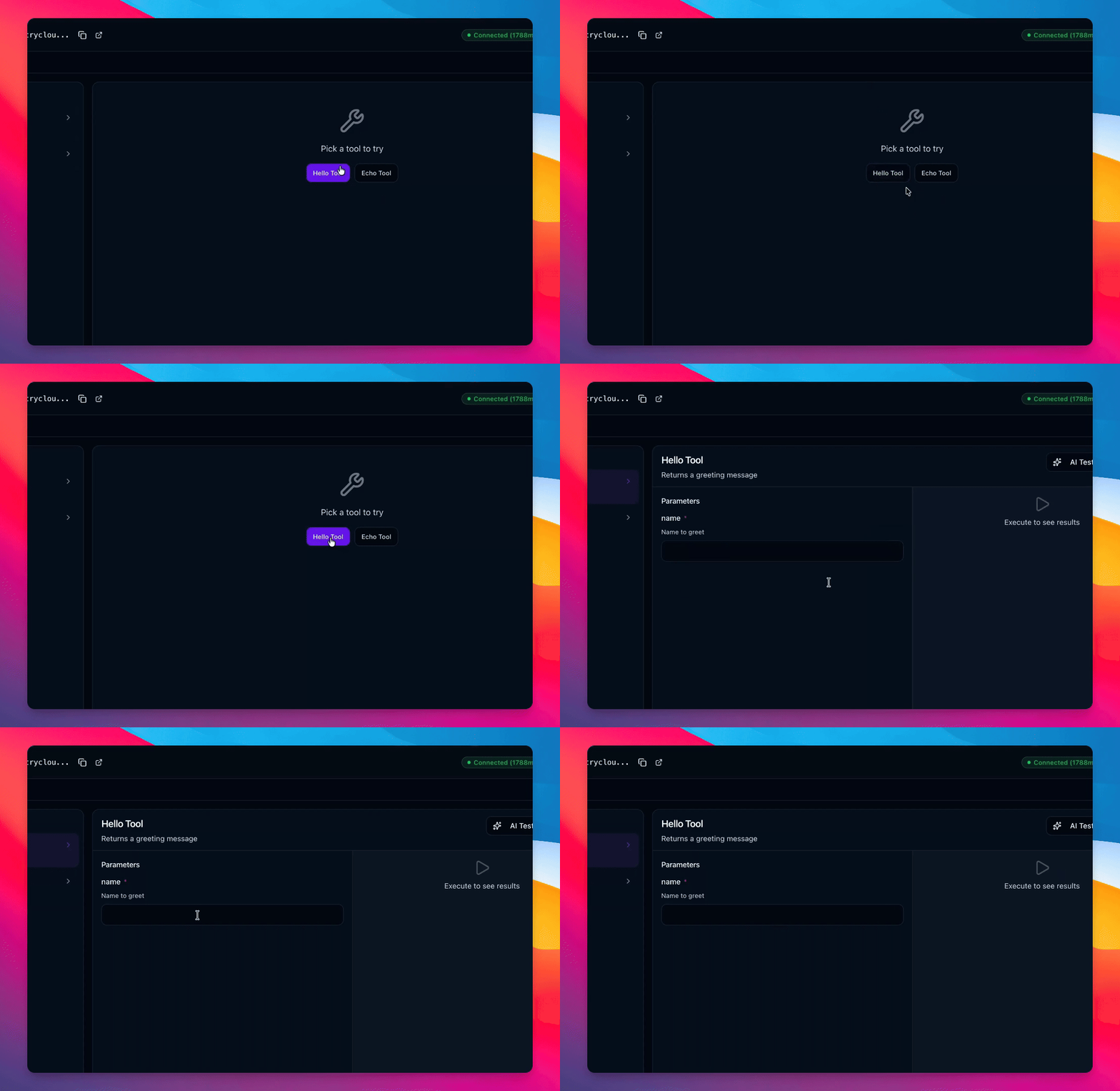
Make sure to provide necessary parameters if required.
Step 5: Use AI Task for Pre-filled Parameters
Run the AI task to automatically fill parameters and execute.
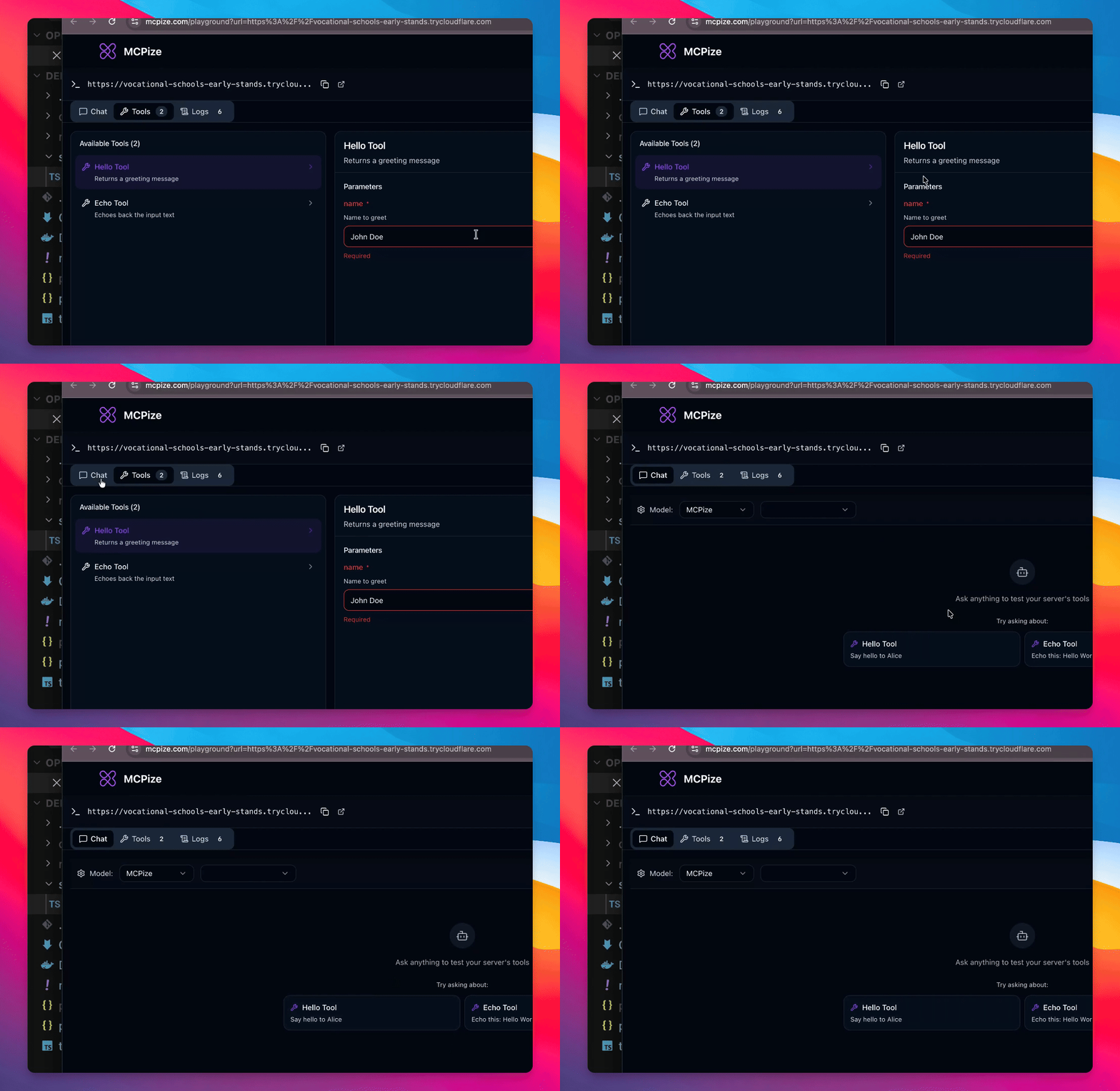
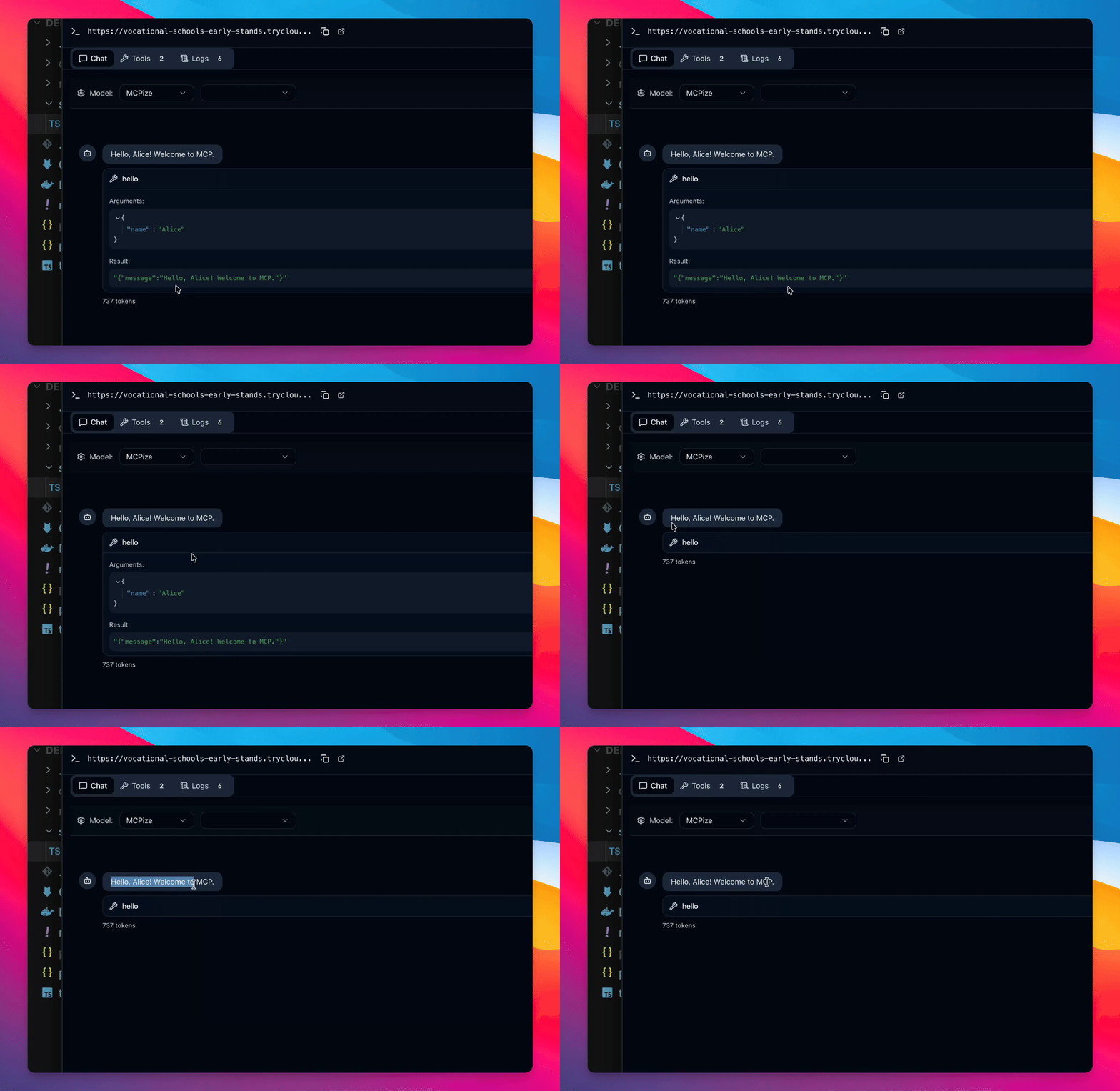
Step 6: Interact with LLM
Send a message to the LLM, such as 'say hello Alice'.
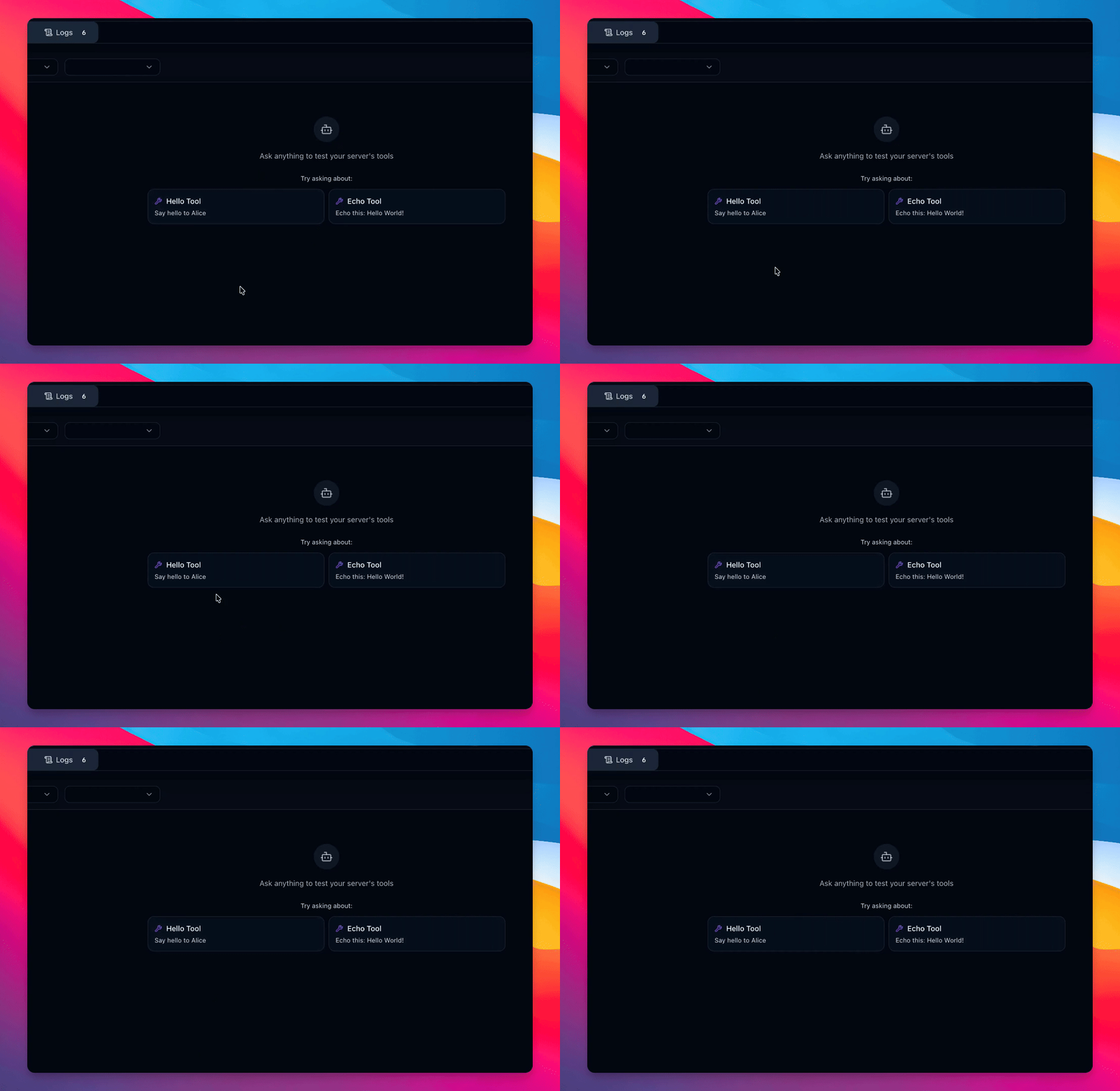
Step 7: View the Response
Check the response from the LLM for confirmation.
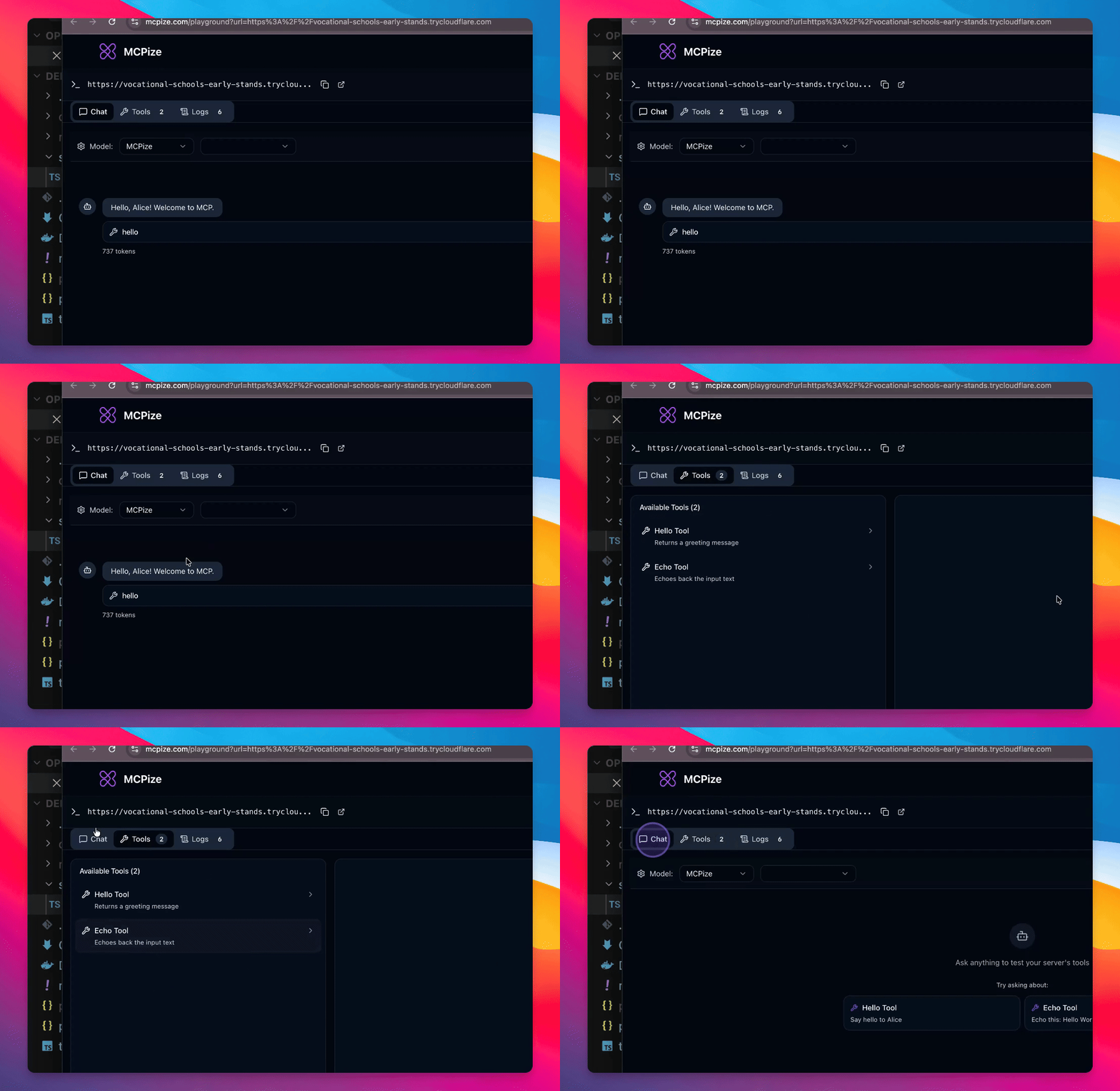
Step 8: Test Echo Tool
Execute the echo tool to verify its functionality.
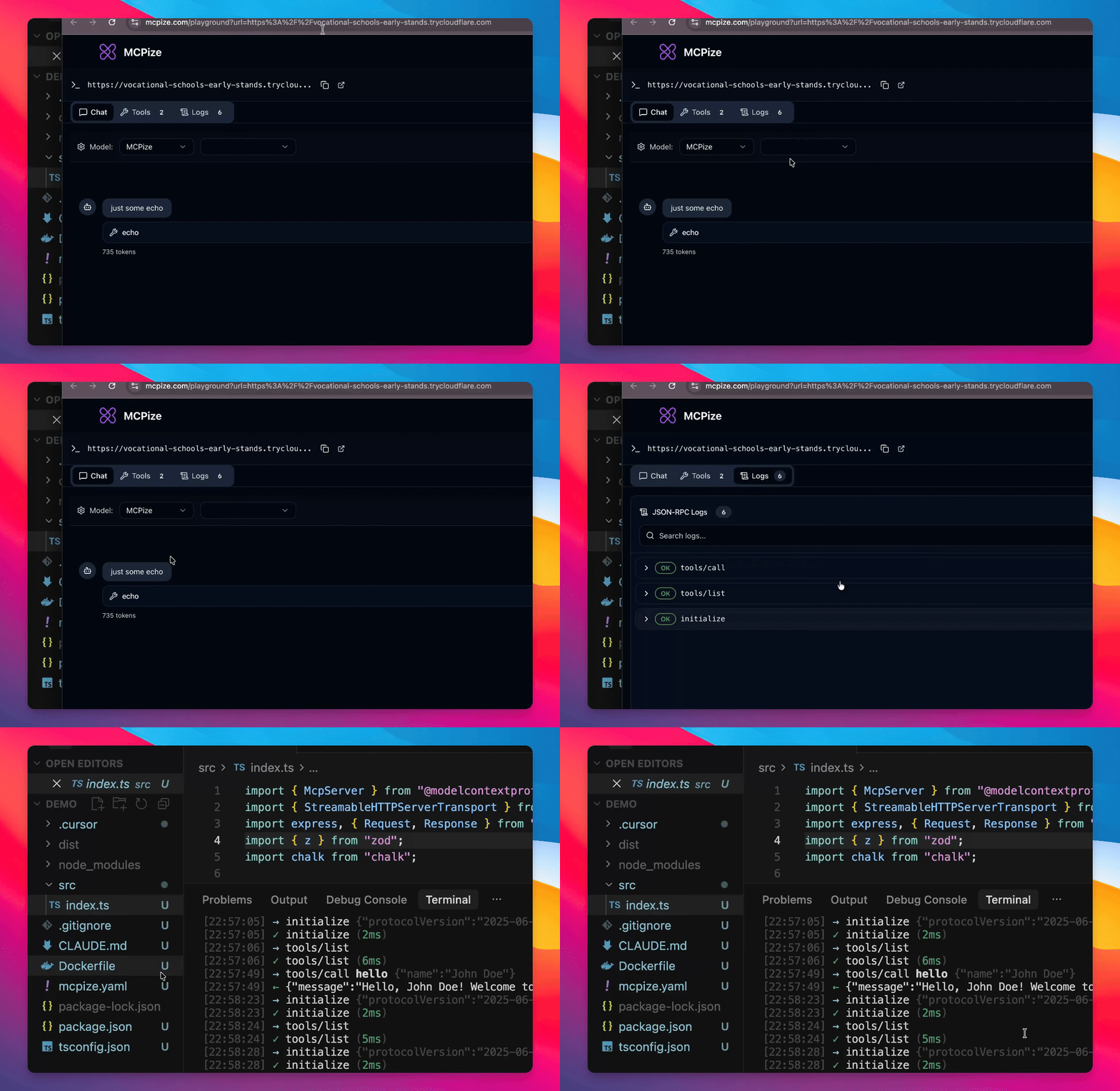
Step 9: Monitor Server Logs
Check logs in the console to debug server behavior.
Troubleshooting
Help tool not executing
Ensure all required parameters are provided.
AI task not responding
Check your connection and server status.
FAQ
What is MCPize?
McPies is a CLI tool for creating and managing server projects.
How do I access the Playground?
Run the command <strong>McPies --play</strong> in your CLI.